Unblock Someone on LinkedIn: Easy Steps & 48-Hour Rule

You usually notice the need to unblock someone on LinkedIn at the worst moment.
A rep is cleaning up an outreach account before launch. A recruiter is trying to revisit a candidate who went cold months ago. Someone on the team realizes a high-value prospect got blocked during a spam cleanup. Then LinkedIn won't let the workflow move forward until the block list gets sorted.
That’s why unblock someone on LinkedIn isn’t just a help-center task. In real outreach operations, it’s part of account maintenance. If you run sales, recruiting, or agency campaigns across multiple profiles, blocked users can pile up unnoticed and start limiting what the account can do. Good teams treat the block list like any other working system. It needs review, rules, and a bit of discipline.
Why You Might Need to Unblock Someone on LinkedIn
The most common reason is simple. Someone blocked the wrong person.
That happens more than people admit. When reps work quickly through inbox noise, fake-looking profiles, irrelevant pitches, and repeat follow-ups, a legitimate buyer or candidate can get caught in the same sweep.
The second reason is less obvious. LinkedIn enforces a strict limit of 50 blocked members per account, according to InformationWeek’s explanation of LinkedIn’s block feature. Once that list is full, the only way to block someone new is to remove older entries.
When blocking stops being a privacy feature
For most casual users, blocking feels permanent. For outreach teams, it often isn’t.
A block list becomes stale fast. Old spam accounts disappear. Low-priority contacts leave their companies. Competitors you wanted out of sight stop mattering. If you never clean the list, you lose flexibility.
That matters most when teams rotate account usage. One profile might be assigned to prospecting this quarter, then switched to recruiting or partnership outreach later. The old block decisions don’t always fit the new job.
Practical rule: If a blocked profile no longer creates risk, it shouldn’t keep taking up room on a working outreach account.
Real operational reasons to unblock
A few show up constantly in scaled campaigns:
- Mistaken blocks: A prospect, former lead, or candidate was blocked during manual cleanup.
- List hygiene: The account has hit LinkedIn’s blocked-user ceiling and needs space.
- Territory changes: A rep inherits an account and needs access to previously blocked people in their market.
- Campaign resets: A team wants to revisit older conversations with a different offer or a different angle.
The bigger point is this. Blocking should solve a current problem, not create a future one. If your team never audits blocked users, you’re reducing the usable surface area of the account over time.
Unblocking a Profile on LinkedIn Desktop
Desktop is still the cleanest place to manage this because the settings are easier to review in one pass, especially when you're checking several names at once.
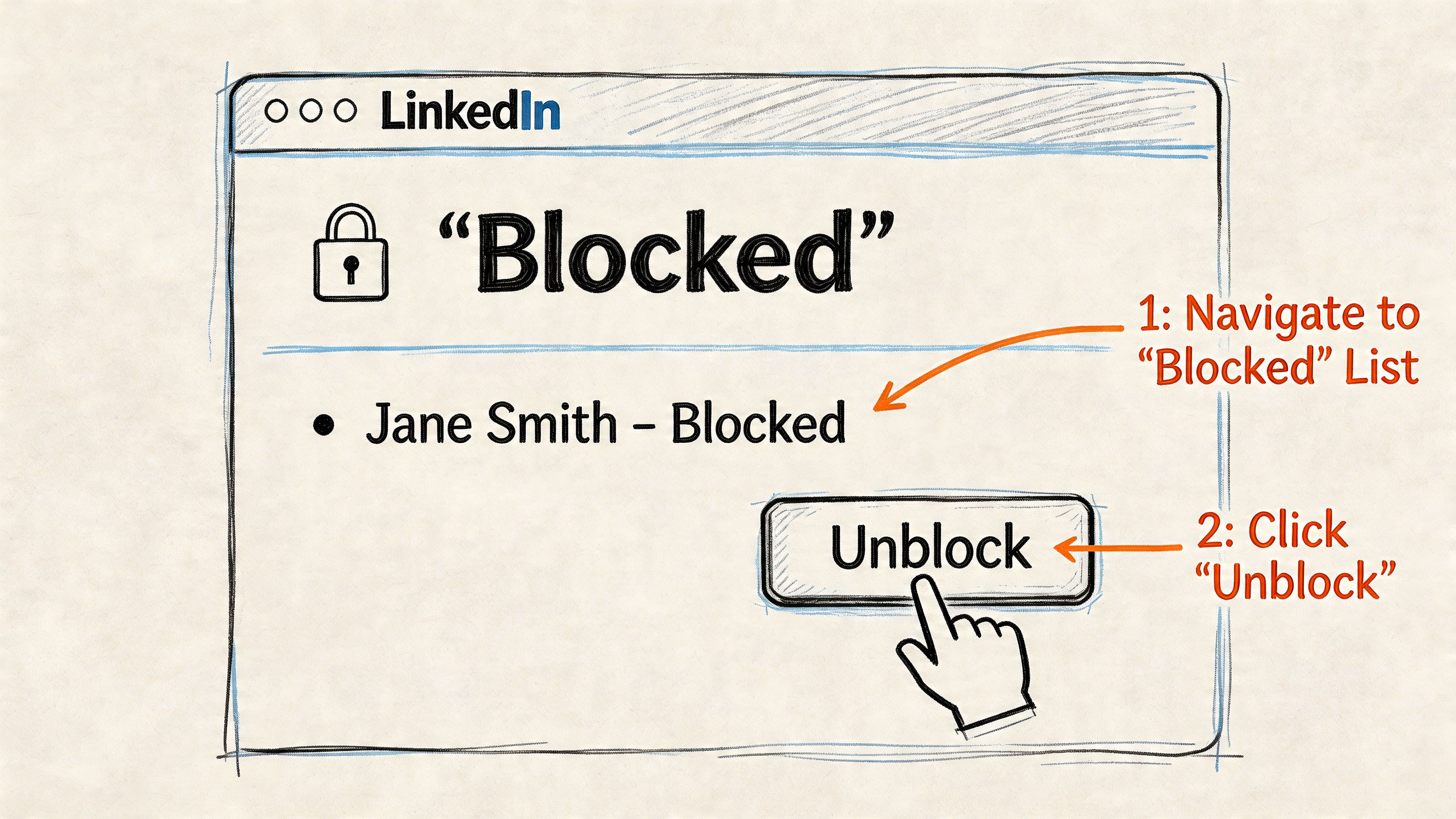
The process is straightforward, but small mistakes slow people down. Usually it’s one of two things: they’re in the wrong settings tab, or they forgot LinkedIn asks for the account password before the unblock completes.
The desktop click path
According to Arcade’s walkthrough of the LinkedIn desktop unblocking flow, the process follows a 7-step path:
- Click the Me icon in the top navigation.
- Open Settings & Privacy.
- Choose Visibility in the left sidebar.
- Open Blocking or Blocked members.
- Find the person you want to remove from the list.
- Click Unblock next to their name.
- Re-enter your password and confirm.
That same guide notes some accounts can manage lists of up to 1,000 blocked profiles, which is exactly why clean navigation matters on desktop when the list gets long.
How to avoid unblocking the wrong person
This sounds basic, but it matters in outreach work. Names repeat. Titles change. Companies rebrand.
Before you click:
- Check the profile identity: Make sure the blocked entry matches the person, not just the name.
- Review why they were blocked: If your team tracks account notes in a CRM, glance there first.
- Confirm current campaign relevance: Don’t reopen access to someone just because they’re on the list.
A fast unblock with no context often creates avoidable mess later.
Why LinkedIn asks for your password
This step frustrates people, but it makes sense. Unblocking changes who can interact with your account again, so LinkedIn treats it as a sensitive privacy action.
If you're managing team-operated accounts, make sure the person handling cleanup has the current credentials before they start. Otherwise the whole task stalls at the last click.
Don’t batch account hygiene tasks without confirming password access first. Most delays happen after the account manager has already found the right profile.
A simple desktop workflow that works
For teams, the cleanest pattern is:
| Action | Why it helps |
|---|---|
| Open the blocked list on desktop | Easier to review names in context |
| Cross-check the profile with CRM notes | Prevents accidental reversals |
| Unblock only what the current campaign needs | Reduces unnecessary exposure |
| Log the action internally | Helps if someone asks why a profile reappeared |
If you only need to unblock one person, the process takes a minute. If you're cleaning old campaign residue, desktop is the safer place to do it.
The Mobile Process for Unblocking LinkedIn Users
Mobile works fine for quick fixes. If you're between calls or away from your desk, you can unblock someone without waiting to get back to desktop.
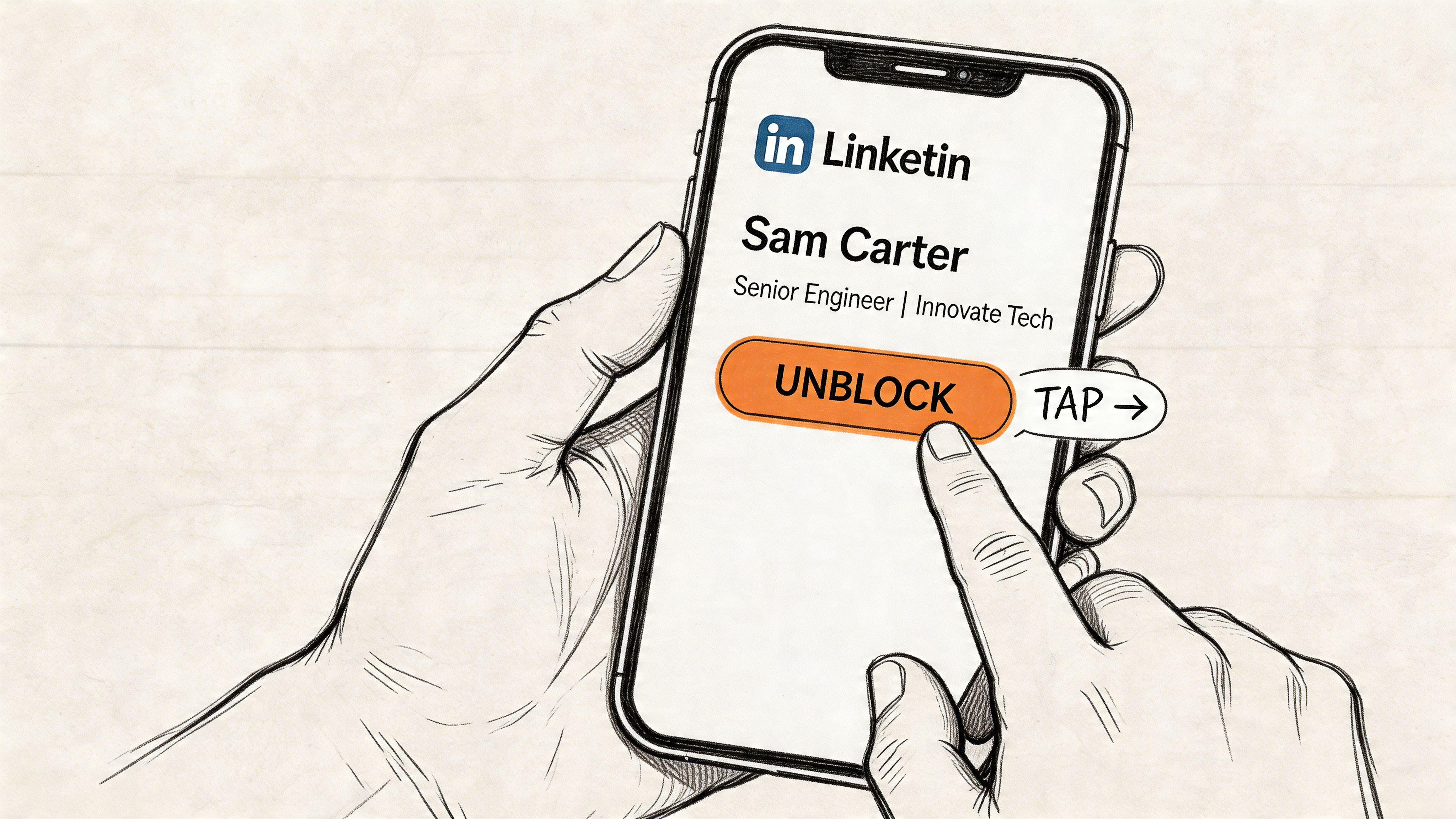
The friction comes from navigation. On mobile, the path feels less obvious, and a lot of people tap around account settings without landing on the actual block list.
The mobile route
Use this sequence inside the app:
- Open your profile from the avatar
- Tap the gear icon
- Go to the Privacy tab
- Scroll to Who you're blocking or Blocked members
- Tap Unblock next to the profile
- Enter your password
- Confirm the action
That’s the version I’d use for a one-off unblock. If you’re reviewing multiple entries, desktop is still easier.
The mobile issue people misread
A common problem isn’t user error at all. It’s the app.
Business Insider’s guide to LinkedIn blocking and settings notes that app cache issues can account for up to 25% of failures when trying to access the block list. The same guidance says clearing the app cache or pre-logging in via a mobile browser can restore access, with 100% uptime for the feature once resolved.
That’s useful when the menu looks broken or the blocked list refuses to load.
If the block list won’t open on mobile, don’t keep force-tapping settings. Clear cache first, then try again.
A quick visual guide helps if you want to compare what you see in the app with a live walkthrough:
When mobile is the right choice
Mobile is best for a narrow set of situations:
- Urgent cleanup: A rep needs one contact unblocked before sending a follow-up.
- Travel days: You’re away from the machine that usually handles account admin.
- Fast verification: You want to confirm whether someone is blocked without opening a full desktop session.
What mobile doesn’t do well is careful review. Long block lists, shared-account notes, and campaign context are all harder to manage from a phone.
Understanding the Aftermath of Unblocking a Profile
The click itself is easy. The consequences are where teams get sloppy.
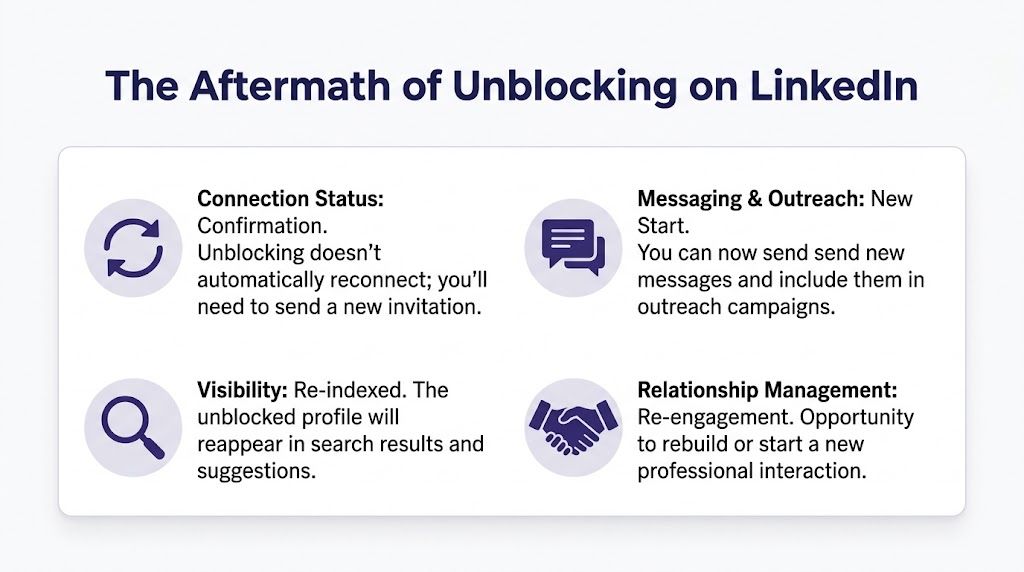
The first useful thing to know is that the other person doesn’t receive a notification when you unblock them. That gives you room to reverse a bad decision discreetly.
The second is just as important. Unblocking doesn’t restore the previous connection or invite. If you want to reconnect, you have to start again.
What changes after the unblock
Think of it as access being reopened, not the relationship being repaired.
- Profile access returns: The person can potentially find and engage with you again.
- Outreach becomes possible again: You can include them in future manual follow-up.
- No automatic reconnection happens: You still need a fresh invitation if you want to rebuild the link.
If you're evaluating whether an open profile changes how visible or reachable someone is, this guide on what LinkedIn Open Profile means is useful context.
The rule that catches teams off guard
LinkedIn applies a 48-hour cooldown before you can re-block the same profile after unblocking. That’s the part many users don’t plan for.
Unblocking isn’t reversible in the moment. Once you remove the block, you’re committed to a waiting window before you can use that control again on the same person.
Treat unblocking as a deliberate action, not a test click. You may not get to undo it immediately.
For individual users, that’s mostly a privacy consideration. For outreach teams, it changes timing, ownership, and who should approve the action.
Strategic Unblocking for Sales and Outreach Teams
A rep clears a blocked profile during list cleanup at 9:00 a.m. By noon, another teammate wants that same prospect blocked again after spotting a compliance risk. LinkedIn will not allow it for 48 hours. That gap is small for a solo user and expensive for a team running active outreach.
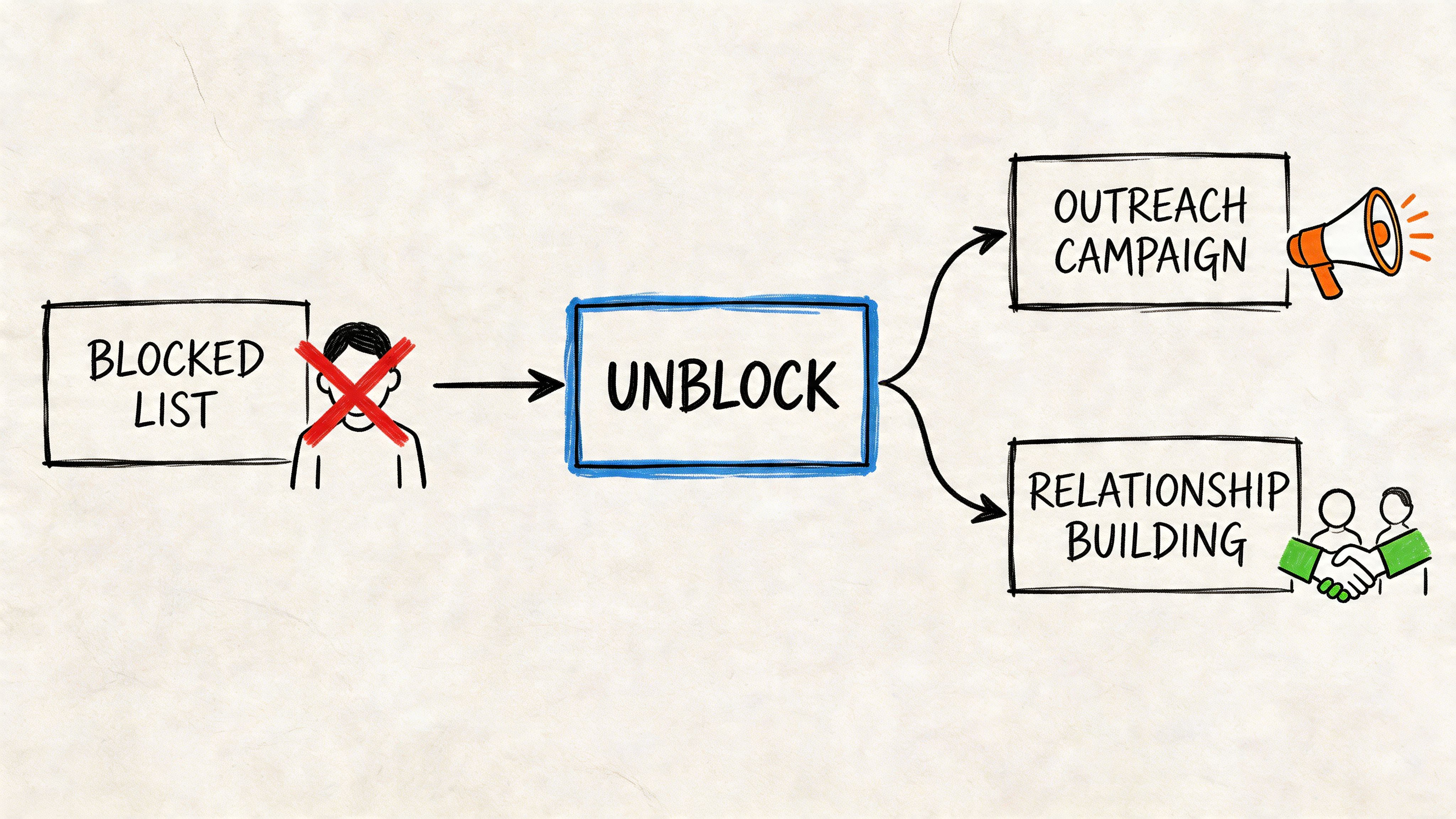
For B2B outreach teams, unblocking is part of account control. It affects who a profile can contact, how safely a campaign can pivot, and whether teammates are working from the same assumptions. The operational mistake I see most often is simple: someone treats unblock actions as routine maintenance, then learns too late that the re-block option is temporarily gone.
Why the cooldown changes campaign planning
The 48-hour re-block rule forces teams to treat unblocking as a scheduled decision, not a quick fix.
In multi-account setups, one unblock can create confusion fast. An SDR may read it as approval to resume outreach. An account manager may assume the profile was released only for visibility checks. A founder using the same account later may not know the block cannot be restored right away. That is how preventable mistakes turn into exposure.
Use a simple control process instead:
- Set one owner for block-list changes: Active outreach accounts should not have multiple people changing privacy controls without approval.
- Record the reason for the unblock: Re-engagement, profile review, mistaken block, and compliance review need different follow-up rules.
- Log the timestamp: Teams need the exact time the 48-hour window started.
- Pause outreach until status is clear: If the unblock was administrative, keep the contact out of active sequences.
Blocking capacity is not a cleanup strategy
Some teams focus too much on block-list limits and not enough on why profiles were blocked in the first place. As noted earlier, account capacity can vary. The practical lesson is the same either way. Do not use blocking as a substitute for lead qualification, suppression rules, or territory management.
A cleaner system separates three groups: people you never want contacted, people you may revisit later, and people who were blocked by mistake. Once those categories are mixed together, teams start unblocking blindly just to tidy the list. That creates unnecessary risk on accounts that are already sending messages, connection requests, or follow-ups.
I have seen this become a real workflow problem in scaled outreach environments. The busier the team, the more valuable a short internal note becomes.
What disciplined teams do differently
Teams that handle LinkedIn safely usually follow a few repeatable habits:
- Review blocked profiles on a schedule: Monthly review is usually enough unless the account is high-volume or shared.
- Separate safety blocks from workflow blocks: Spam, harassment, and clear compliance issues should not sit in the same bucket as temporary campaign exclusions.
- Match the rule to the role: Recruiters, SDRs, account executives, and founders use LinkedIn differently, so their unblock permissions should differ too.
- Keep block actions inside the outreach SOP: If your team already documents send limits, list sources, and reply handling, block changes belong there too.
For teams building broader outbound systems, lead generation from social media gives useful context on treating social platforms as acquisition channels that need process, not just activity.
If your operation relies on higher-trust profiles, this guide on how to use LinkedIn for sales with verified accounts is a practical reference for setting rules that protect account health while keeping campaigns efficient.
Common Unblocking Problems and Their Solutions
Unblocking usually fails at the process level, not the button-click level. In outreach teams, that matters because one mistaken unblock can reopen a profile to searches, views, and accidental contact before the 48-hour re-block window expires.
I unblocked them, but I still can’t find the profile
Start with the simple checks. Confirm the exact profile name, company, and URL if you logged it earlier. People change headlines, profile photos, and even display names often enough that a quick search can miss them.
Search can also be inconsistent across account types and devices. If the unblock went through, the profile may still take a little time to appear in search, or it may be harder to surface because of the other person’s visibility settings. Check from desktop first, then verify with the direct URL if your team stores profile links in the CRM or outreach sheet.
LinkedIn keeps asking for my password
LinkedIn treats unblocking as a sensitive action, so the password prompt is expected.
If the password fails, stop guessing. On shared or rotated accounts, this often points to stale credentials, a password manager mismatch, or a teammate who changed the login without updating your internal record. Repeated failed attempts create risk you do not need, especially if the account is already under heavier scrutiny. If the account starts throwing unusual access checks or permission problems, review this guide on why LinkedIn may restrict your account after suspicious activity.
Why can’t I block them again immediately
LinkedIn enforces a waiting period after you unblock someone. For outreach teams, this is the detail that causes the most avoidable mistakes.
If a rep unblocks a prospect to review a profile, reconnect context, or clear an old workflow block, that profile cannot be blocked again for 48 hours. That creates a real campaign-management trade-off. During that window, another teammate can view the contact as available, add them back into a list, or trigger a sequence that should have stayed suppressed. The fix is operational. Log the unblock, note the earliest re-block time, and keep temporary exclusions separate from permanent safety blocks.
I have too many blocked users to manage easily
Large blocked lists become a maintenance problem fast. The answer is not more manual clicking. The answer is cleaner rules.
Split blocked profiles into categories such as spam, compliance risk, competitor monitoring, and temporary outreach exclusions. Temporary workflow blocks should be reviewed on a schedule because they are the ones that create re-entry mistakes later. I have seen teams clean up a messy blocked list by requiring a short reason code and a date on every block action. That one habit reduces duplicate work and lowers the chance of unblocking the wrong person from the wrong account.