LinkedIn Restricted My Account? Your 2026 Recovery Guide

That stomach-dropping moment you log into LinkedIn and see a "Your account has been restricted" notification is something no sales pro or active networker wants to experience. But before you panic, take a breath. Not all restrictions are the same, and understanding why it happened is the first step to getting your profile back online.
Why LinkedIn Restricted Your Account and What It Means
LinkedIn’s security algorithms, which get fine-tuned at least twice a year, are constantly on the lookout for activity that seems robotic, spammy, or just plain violates their Professional Community Policies. A restriction is the platform’s way of hitting the brakes when it spots something unusual.
Let's play detective and figure out exactly what’s going on with your account.
Common Triggers for Account Restrictions
More often than not, the culprit is activity that looks like a bot is at the wheel. This could mean sending a flood of connection requests in a short period, especially if a lot of them are getting ignored or marked as "I Don't Know This Person." Using automation tools is another huge red flag for LinkedIn, as it’s a direct violation of their User Agreement. It's essential to first identify and steer clear of common LinkedIn mistakes that frequently lead to these penalties.
Another common tripwire is hitting the "commercial use limit." If you’re heavily prospecting on a free account—we’re talking viewing hundreds of profiles a day—LinkedIn might flag your activity as recruiter-like behavior. They'll either restrict your search functions or nudge you pretty hard toward a paid plan.
Automation and high-volume outreach are a high-stakes game. If you don't have a smart, human-centric strategy backing it up, you're essentially gambling with your account's health against an algorithm that never sleeps.
The numbers don't lie. Data from outreach professionals shows that a staggering 23% of automation users get hit with a restriction within just 90 days. That risk is even higher for new or "cold" accounts. In contrast, users who take the time to warm up their accounts and build trust gradually see that risk drop to a much more manageable 5-10%.
Decoding the Type of Restriction
To get your account back, you first need to diagnose the problem. The restriction message you see will give you clues about the severity and what you need to do next. To help you quickly figure out what you're up against, here's a breakdown of the most common restrictions.
Understanding Common LinkedIn Restrictions
| Restriction Type | What It Looks Like | Common Cause | Typical Duration |
|---|---|---|---|
| Temporary Timeout | A message limiting your activity (like sending invites or messages) for a set time. | A sudden spike in activity, like sending too many connection requests at once. | 24-48 hours |
| ID-Verification Lock | Your account is locked, and you're prompted to upload a government-issued ID to regain access. | LinkedIn suspects the account is fake, compromised, or using a false identity. | A few days to a week, pending verification. |
| Shadowban | Your account seems normal, but your posts get zero engagement and your profile is invisible in search. | Repeatedly violating policies; often follows multiple temporary restrictions. | Indefinite until resolved with support. |
Once you understand whether you're dealing with a simple timeout, an ID lock, or a frustrating shadowban, you can move from crisis mode to a clear, actionable recovery plan. For a deeper dive into these penalties, you can learn more about the different types of LinkedIn bans and how to avoid them.
/post/what-are-linkedin-bans-how-to-avoid-them-2026
Your Immediate Account Recovery Playbook
That heart-stopping "Your account has been restricted" notification from LinkedIn is a gut punch, I know. But panicking is the worst thing you can do right now. Your best shot at getting your account back quickly is a calm, methodical response.
First things first: check your email. Dive into your inbox (and don't forget the spam folder) for a message from LinkedIn. This email is your starting point—it usually gives you the why behind the restriction and tells you exactly what to do next.
Prove You’re a Real Person
Once you log in, LinkedIn will likely funnel you directly into their identity verification process. This is their way of making sure the account belongs to a real person and hasn't been compromised.
You’ll almost certainly be asked to upload a clear picture of a government-issued ID, like your passport or driver's license. The name on your ID must match the name on your profile, or you're just asking for delays. Seriously, this step isn't optional. Refusing to provide ID is a surefire way to get your account permanently shut down.
If you suspect your account was hacked, providing your ID is the fastest way to prove you’re the rightful owner. We cover the ins and outs of this specific scenario in our guide on what to do when your LinkedIn account is hacked.
It's also helpful to understand what kind of restriction you're dealing with. I've seen them fall into three main buckets.
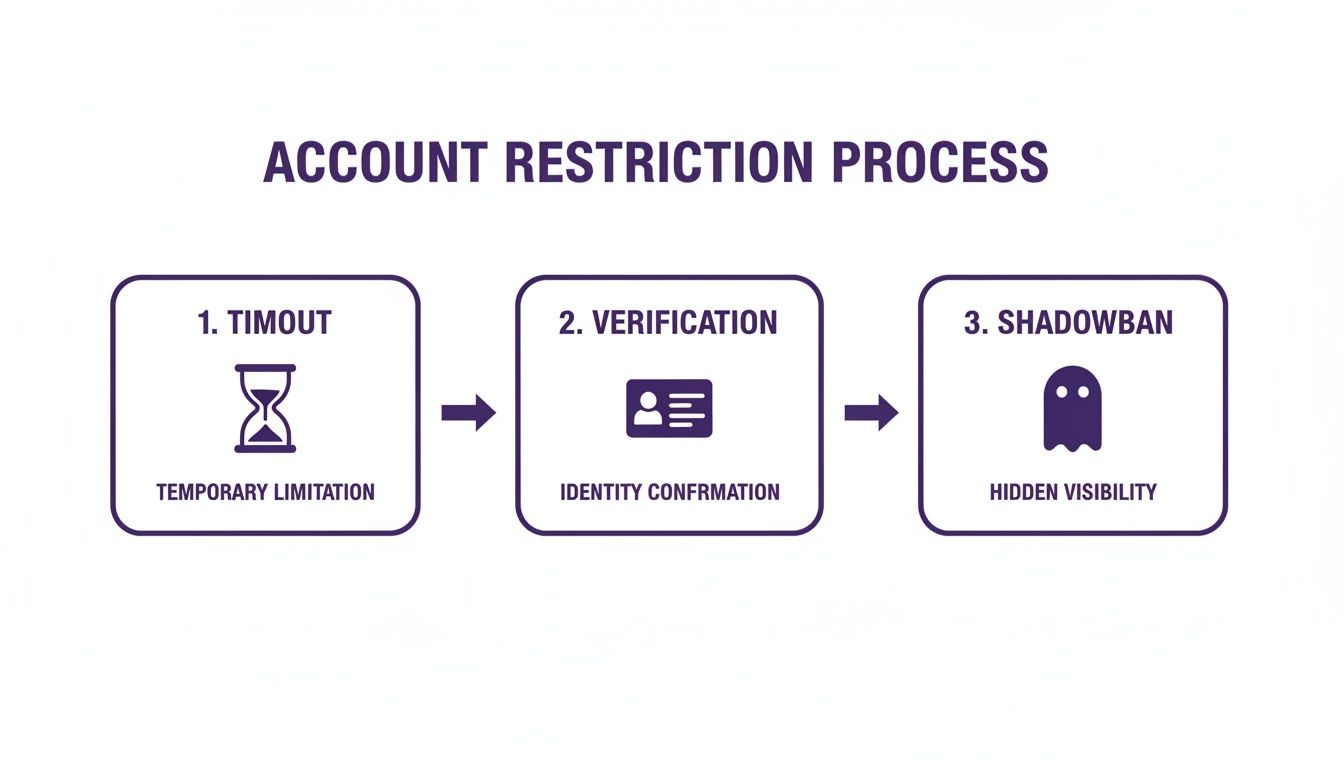
Knowing whether you’re in a temporary timeout, a simple verification hold, or a more serious shadowban helps you gauge how long this whole process might take.
How to Write an Appeal That Actually Works
After you've verified your identity, you might still need to submit a formal appeal. This is your chance to talk directly to the LinkedIn Trust & Safety team, so make it count. Keep it short, professional, and stick to the facts. Getting emotional or writing a novel about why you need your account back won’t help.
Here’s a simple framework that I’ve seen work time and time again:
- Acknowledge the situation. Start by clearly stating that you are appealing the restriction placed on your account on [Date].
- Explain your activity (carefully). Briefly touch on what might have triggered the flag. If you honestly don't know, say that. If you do, frame it professionally. For example: "I was recently connecting with new prospects after a major industry conference, which may have looked like an unusual spike in activity."
- Reaffirm your commitment. End by stating that you’ve reviewed LinkedIn’s Professional Community Policies and are committed to following them. A simple line like, "My LinkedIn account is crucial for my professional work, and I'm eager to resolve this," shows you take it seriously.
Expert Tip: Be honest, but be smart. Never lie in your appeal. But if you were using an automation tool, you don't need to shout it from the rooftops. Instead of saying "I used an automation bot," try phrasing it as, "I was using a third-party tool to help manage my professional outreach." It’s a subtle but important distinction that can make all the difference to the person reviewing your case.
Navigating LinkedIn Support When You're Stuck
So you've submitted your appeal, maybe even uploaded your ID, and... crickets. Or worse, you get a canned response that feels like a robot just shut the door in your face. It's incredibly frustrating, but if you're sure you've done nothing wrong, don't throw in the towel. When you feel like you've hit a dead end, you're often just getting to the real part of the recovery process.
Your first move is to go back to LinkedIn’s official channels, but this time with a different strategy. Don't just resubmit the same appeal. Instead, open a completely new ticket through the LinkedIn Help Center. In this new ticket, reference your previous case number. Politely explain that the automated response didn't resolve your issue and you are now requesting a manual review by a human agent.
Document Everything and Follow Up Smartly
The moment you see that restriction notice, you need to start acting like a detective building a case. Your documentation is your most powerful asset.
- Screenshot everything. Every notice, every support email, every automated reply from LinkedIn.
- Save your appeals. Keep a copy of the exact text you submitted in a separate document.
- Log the timeline. Note the date and time of every single interaction you have.
This paper trail becomes crucial when you need to follow up. If you haven't heard anything meaningful within 5-7 business days, it's time to nudge them. Reply directly to your support email thread with a polite message, referencing your case number and providing a quick summary. Whatever you do, don't spam them with new tickets every day—that will only clog their system and can actually hurt your chances.
A rejected appeal often means your case was only reviewed by an algorithm. The goal now is to bypass the bots and reach a person. A carefully documented, persistent, and professional approach is your best strategy for getting that human review.
Setting Realistic Timelines and Escalation Paths
You have to be patient here. Unraveling a complex account restriction can take anywhere from a few days to several weeks. And just because a first-level support agent gives you a "no," that doesn't mean it's the final word. If you're confident the restriction was a mistake, it's time to think about escalating.
One tactic that can sometimes cut through the noise is reaching out to @LIHelp on X (what used to be Twitter). You can publicly post that you need help (without sharing any sensitive info) and then send them a direct message with your case number.
A message like, "My account was restricted in error, and my appeal was denied without a clear reason. Can you please have a specialist review case #12345?" is perfect. It’s firm, professional, and shows you’ve already followed the standard process and are now seeking a higher level of support.
Adopting Safer Automation and Outreach Habits
Okay, you got your account back. Huge sigh of relief. But the real work begins now: making sure you never land in LinkedIn jail again. If you're using automation for outreach, it's time to completely rethink your approach. Forget about pushing the limits; the new goal is to build a smart, sustainable workflow that looks completely human.
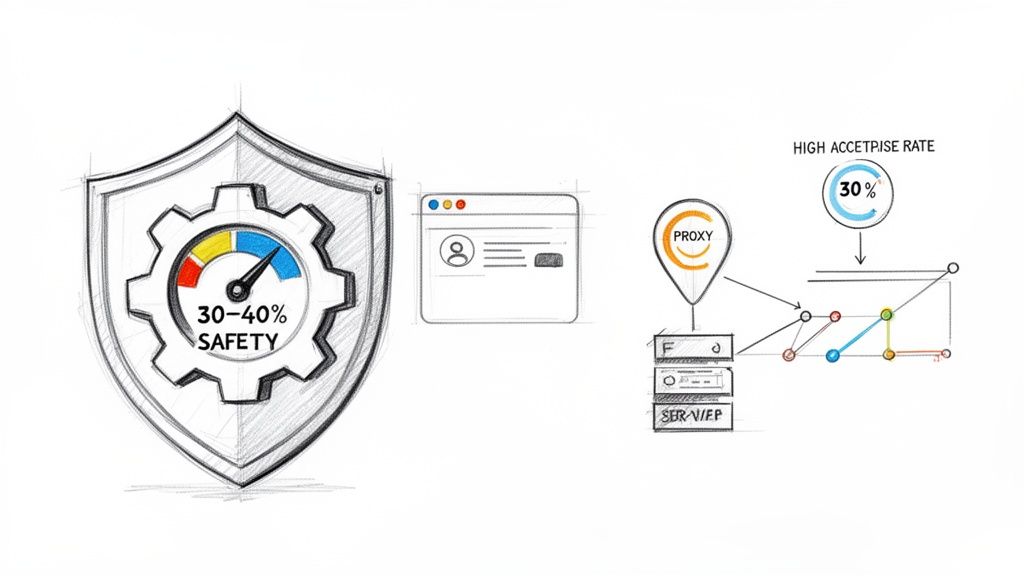
The biggest mistake I see teams make is redlining their automation tools. The single most important habit you can adopt is building in a safety margin. Never, ever run your tools at maximum capacity. Instead, pull everything back by 30-40%. If your tool promises 100 connection requests a day, you send 60 or 70. That simple change alone makes your activity look far less aggressive and robotic to LinkedIn's algorithm.
Prioritize Quality Over Quantity
Sheer volume is what gets accounts flagged. It’s always better to have fewer, higher-quality interactions than to blast out hundreds of generic messages that get ignored. LinkedIn pays close attention to your connection acceptance rate, and it’s a metric you can’t afford to ignore.
If your acceptance rate consistently drops below 30%, you're basically telling LinkedIn that you're spamming people who have no idea who you are. This is a fast track to getting hit with "I Don't Know This Person" (IDK) reports, which are massive red flags for your account's health.
Staying safe is about mimicking human behavior. No real person sends exactly 100 connection requests every day at 9 AM sharp. True safety lies in randomness, moderation, and genuine engagement that earns positive responses.
By 2026, LinkedIn's penalty system has become a lot more sophisticated. It's essentially a points-based model where ignored warnings stack up and lead to bigger trouble. Pushing past limits like 100-200 weekly messages or 500 daily profile views (on a free account) is asking for a restriction. We've seen that running automation without that 30-40% safety buffer creates a 23% ban risk within 90 days—a disastrous disruption for any sales team. You can find more data behind this in our complete guide to LinkedIn automation safety.
Isolate Your Digital Footprint
Another critical piece of the puzzle is separating your automated activities from everything else you do online. You need to prevent LinkedIn from connecting multiple accounts to a single device or network, which is a classic trigger for restrictions.
Here are the two practices we live by:
- Dedicated Proxies: Every automated account needs its own high-quality, dedicated proxy. This gives the account a stable, unique IP address, so it always looks like it's being used from the same location. Shared or free proxies are a recipe for disaster.
- Browser Profiles: Use a separate browser profile for each LinkedIn account. You can use a tool that manages these or even just dedicated incognito windows. The goal is to isolate the cookies, cache, and other digital fingerprints to stop any cross-contamination between profiles.
For an extra layer of privacy and to avoid future verification headaches, understanding how to buy a virtual phone number is a game-changer. It provides another degree of separation for your accounts.
When you combine these habits, your entire outreach operation becomes far more resilient. For a complete blueprint on setting this up, check out our guide on a safe LinkedIn automation workflow that reduces ban risk.
Building a Resilient Outreach Strategy That Lasts
So you've recovered your account. Now what? Going back to the same old strategy is a recipe for another restriction. For any sales or marketing team doing serious outreach, relying on personal profiles or spinning up brand-new accounts is a ticking time bomb. It’s an unsustainable model that basically guarantees you'll be seeing that dreaded "LinkedIn restricted my account" message again.
The only way forward is to build your outreach on a stronger foundation. This means shifting away from fragile, unproven accounts and investing in pre-warmed, ID-verified LinkedIn accounts. These aren’t just empty profiles; they're aged digital assets with an established history, connections, and a high trust score with LinkedIn from day one.
The Advantage of Warmed-Up, Verified Accounts
I like to think of a brand-new LinkedIn profile like a new engine. You can't just redline it from the start. You have to break it in slowly, carefully building up mileage before you can really push it. The same goes for outreach. A new account needs weeks, sometimes months, of slow, manual activity to warm up before it can handle any serious automation.
That long, tedious warm-up period is precisely where most teams get flagged and restricted. By using a pre-warmed account, you get to skip that entire high-risk phase.
An account that already has hundreds of connections and has passed ID verification can handle much higher activity levels right away. This creates a predictable and scalable system for your outreach, freeing up your team to focus on what they do best—closing deals, not babysitting accounts.
For B2B teams scaling outreach, a single restriction costs 7-14 days of SDR productivity, equating to over $1,000 in lost opportunity per incident. Broader data reveals 23% of automation users face restrictions within 90 days, underscoring the risk of using organic profiles for serious campaigns. Understanding these LinkedIn limits and their business impact is critical.
Owning Your Outreach Assets
When you buy a verified account, you're not just renting a solution—you're acquiring a durable business asset. It's absolutely crucial that you get full ownership, including the original email and password. This gives your team complete control and lets you integrate these profiles directly with your existing sales stack.
When you're looking for a provider, make sure they offer a few key things:
- Full Account Ownership: You need complete control, no subscriptions or shared access. The account should be 100% yours.
- A Replacement Guarantee: A reputable provider will stand behind their accounts. If something goes wrong shortly after your purchase, they should offer a replacement. It’s a simple sign of quality and gives you peace of mind.
- Compatibility with Your Tools: The accounts must work seamlessly with the major automation platforms, whether you’re using Expandi, Dripify, Waalaxy, or LinkedHelper.
This approach fundamentally changes your outreach from a high-stakes gamble to a reliable, scalable operation. Instead of constantly losing momentum by replacing restricted profiles, your team can finally build on a foundation of trusted assets that grow in value over time. It’s the difference between building on sand and building on solid rock.
Common Questions (and Straight Answers) About Account Restrictions
Once you've gone through the steps to get your account back, you're often left with more questions than answers. It's a confusing process, so let's clear up some of the most common things people wonder about after dealing with a LinkedIn restriction.
How Long Does a LinkedIn Restriction Typically Last?
This is the big one, and the honest answer is: it depends entirely on why you were flagged. The timelines can swing wildly.
- Minor slip-ups: If you just got a bit too eager and sent a flood of connection requests, you're likely looking at a simple timeout. Think of it as a slap on the wrist. These usually last 24 to 48 hours.
- Identity checks: When LinkedIn gets spooked and thinks your account might be fake or compromised, they'll lock it down until you prove you're you. This involves a human review of your ID, so expect it to take anywhere from 3 to 7 business days.
- Serious violations: For repeat offenders or major breaches of the rules, the restriction can drag on for weeks or even become permanent.
Your best move is to act fast. The quicker you give LinkedIn exactly what they're asking for, the sooner a real person can review your case and get you back online.
Will Using Automation Always Get My Account Restricted?
Not necessarily, but you’re definitely playing with fire. The trick is to make your automation behave just like a human would. Clumsy, high-volume bots are what trigger the "LinkedIn restricted my account" notification for most people.
The goal isn't to trick the system but to blend in. Smart, human-like automation usually flies under the radar. It's the aggressive, large-scale campaigns that are a magnet for restrictions. Safe automation is all about quality engagement, not just raw numbers.
To keep your account safe, you need to operate well below LinkedIn's official limits. Make sure you randomize the timing of your activities and use tools like a dedicated proxy to keep your digital footprint consistent. At the end of the day, focusing on quality outreach that gets positive replies is a much safer bet than just blasting out thousands of generic messages.
Can I Recover a Permanently Banned LinkedIn Account?
I'll be direct: it's extremely difficult and highly unlikely. A permanent ban is LinkedIn's final word, and they save it for the worst offenses—things like running scams, creating fake profiles, or repeatedly ignoring their warnings and temporary restrictions.
You can always try to appeal, but the success rate is incredibly low. Once the Trust & Safety team decides to close an account for good, they rarely change their minds. This is exactly why getting it right from the start with safe outreach strategies is so important. You simply can't risk losing your entire professional network over a preventable mistake.
What Is a LinkedIn Shadowban and How Can I Tell?
A shadowban is one of the most frustrating things that can happen. It’s an unofficial restriction where LinkedIn secretly kills your account's visibility without telling you a thing. You can log in and use your account as normal, but almost no one is seeing your content.
Here are the classic signs:
- A sudden, massive drop in views and engagement on your posts.
- Your profile mysteriously vanishes from search results, even when people search your name.
- Comments you leave on posts aren't visible to anyone outside your network.
The easiest way to confirm it is to ask a colleague you're not connected with to search for one of your recent public posts. If they can't find it, you've likely been shadowbanned. This is often a consequence of using banned third-party tools or engaging in spammy behavior that just makes LinkedIn a worse place for everyone else.
At BIDVA, we know that a stable LinkedIn presence is non-negotiable for serious outreach. That's why we provide pre-warmed, ID-verified accounts to give your team a resilient foundation, helping you sidestep restrictions and scale your campaigns with confidence. Learn more about our secure accounts.