Block People On LinkedIn: Desktop & Mobile Guide

You’re usually not searching how to block people on LinkedIn because you’re curious. You’re searching because something is already off.
A prospect went from cold to rude. A competitor started orbiting your team’s profiles and scraping connection lists. A former colleague keeps dropping junk comments under your posts. Or one of your SDR accounts is attracting the wrong kind of attention and you need clean separation without blowing up the rest of the campaign.
That’s the true context for blocking on LinkedIn. It isn’t drama management. It’s network hygiene.
For solo users, blocking is simple. For teams running outreach across multiple profiles, it gets operational fast. One bad decision can remove a useful contact, strip endorsements from a profile you’ve spent time building, or create unnecessary trust-score pressure on an account you rely on daily. Teams also run into the opposite problem. Someone blocks one of your accounts and now you have to decide whether to retry from another profile, pause, or mark the lead as closed.
Good LinkedIn operators treat blocking as a controlled action. They use it to protect people, protect account health, and keep outreach environments usable. If you want to stay discreet before taking action, using LinkedIn incognito mode first can help you review a profile without broadcasting interest.
When You Need to Create Digital Distance on LinkedIn
A sales rep connects with a prospect. The early messages are normal. Then the replies get sarcastic, personal, or plainly unprofessional. Another rep notices that same prospect has started viewing multiple team profiles and engaging in ways that look less like buying intent and more like disruption.
That’s when blocking becomes a business tool.
Blocking is often the cleanest fix
Most LinkedIn friction doesn’t justify a report. A lot of it doesn’t even justify confrontation. You just need distance.
Common examples look like this:
- Prospects who cross a line: They reply with abuse, baiting, or repeated hostility.
- Competitors watching too closely: They monitor your network, team moves, and visible social proof.
- Spammy connections: They flood comments, DMs, or your feed with low-quality promotions.
- Former colleagues or clients: They’re not dangerous, but they’re disruptive enough that you don’t want ongoing access.
Blocking is useful because it resets the relationship completely. You stop wasting attention on someone who shouldn’t be in your LinkedIn environment in the first place.
Practical rule: If someone’s presence creates friction every time your team sees their name, blocking is usually cheaper than continued monitoring.
Outreach teams face different trade-offs
A standard how-to guide treats blocking like a personal preference feature. In practice, sales teams use LinkedIn as working infrastructure. That changes the decision.
If you manage multiple SDR or recruiter profiles, every action has side effects. Blocking can help remove distractions and hostile contacts, but it can also affect account rhythm if people on your team use it impulsively. The best operators don’t block because they’re annoyed. They block because the account performs better without that person in its orbit.
That’s the difference between casual use and campaign use. You’re not just curating a feed. You’re protecting a channel.
Your Step-by-Step Guide to Blocking and Unblocking
Blocking someone on LinkedIn is straightforward once you know where LinkedIn hides the option. The friction isn’t in the click path. It’s in making sure you block the right person, from the right account, for the right reason.
How to block someone on desktop
Open the person’s profile first. Don’t try to do it from memory or from a CRM tab. Confirm you’re on the exact profile you want to act on.
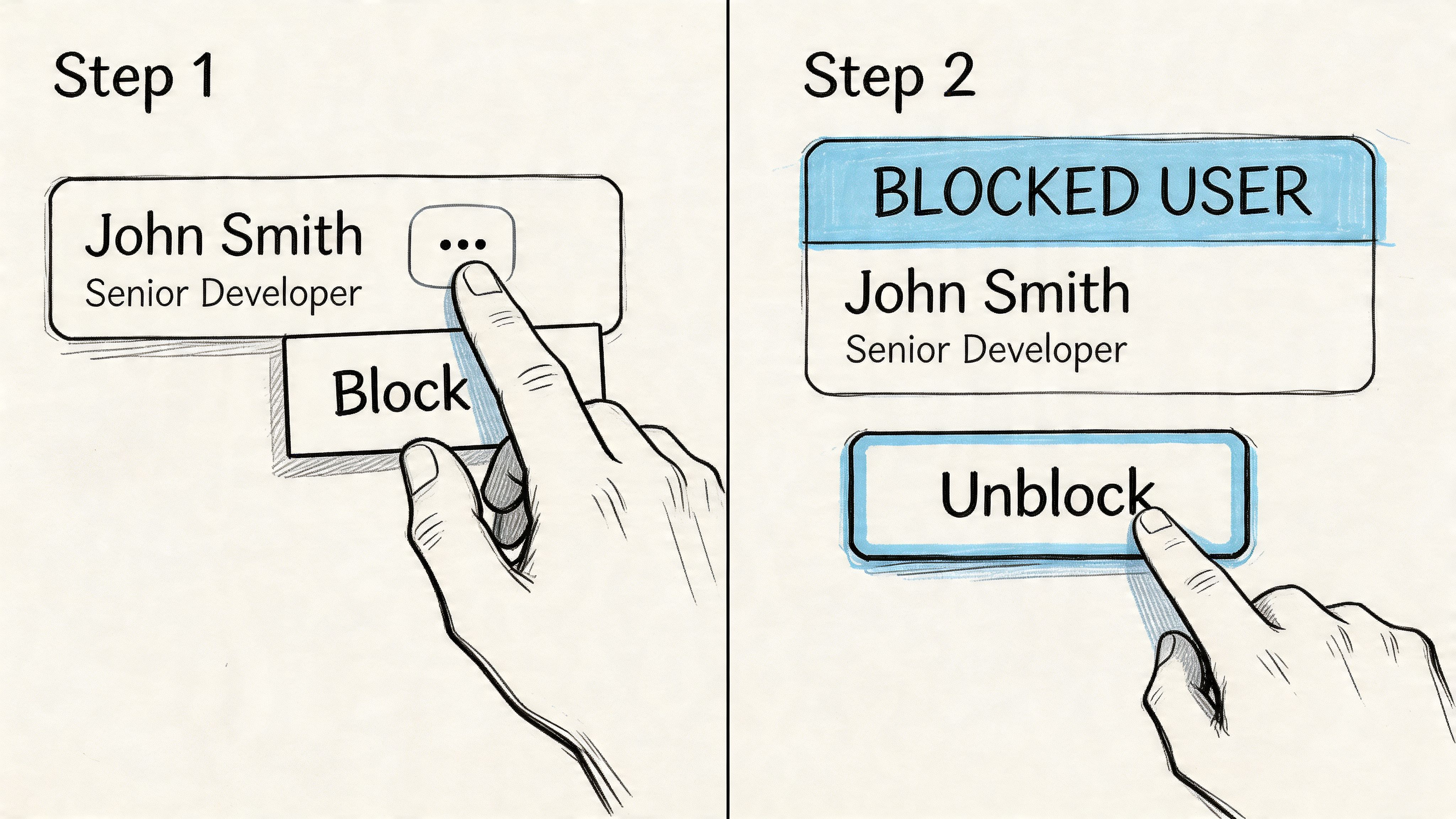
On the profile, look for the More button, usually shown as three dots near the message area. Click it, then choose Report/Block. LinkedIn will present the option to Block [name]. Confirm it.
Once you do that, LinkedIn applies the block immediately. There’s no warning to the other person.
Desktop is usually the safer place to do this if you’re handling account operations carefully. The larger layout makes it easier to verify profile identity, especially when names are common or multiple prospects work at the same company.
How to block someone on mobile
The mobile flow is similar. Open the person’s profile in the LinkedIn app. Tap the three-dot menu, then select the report or block option. Choose Block and confirm.
Mobile works well when a rep needs to react quickly, but it also creates more room for sloppy decisions. Small screens make profile mix-ups easier. If your team is working from several LinkedIn accounts, it’s worth setting a rule that final block decisions happen from desktop unless the issue is urgent.
Where to manage your block list
LinkedIn keeps blocked users inside the privacy settings. Go to Settings & Privacy, then the visibility area, then the blocking list. Depending on interface changes, the exact wording can shift slightly, but the block management area is there.
That page matters because blocking isn’t a set-and-forget feature for active teams. You need to review it occasionally.
Use the list to check things like:
- Who was blocked intentionally: Make sure no rep blocked a useful prospect in frustration.
- Which accounts are using blocks too loosely: A pattern usually appears fast.
- Whether an unblock is worth it: Sometimes a contact was blocked during a bad exchange but later becomes relevant again.
For a deeper walkthrough of the unblock path itself, this guide on how to unblock someone on LinkedIn is a useful companion.
How unblocking works
Unblocking is done from the same management area. Find the person in your blocked list, select the unblock option, and confirm. LinkedIn may ask for your password during the process.
That password check is useful in team environments. It adds a pause before someone reverses a decision casually.
Here’s the practical part. Don’t unblock someone unless you have a reason. Curiosity isn’t a reason. Neither is “let’s just see what happens.”
Sometimes teams unblock because a prospect changed jobs, a recruiter needs to re-open contact, or an old conflict no longer matters. That’s valid. Random toggling isn’t.
The video below shows the general user flow if you want to see the interface before doing it live on an active account.
The safest block is the one logged in your process, not just clicked in the interface.
What Really Happens When You Block Someone
Blocking on LinkedIn changes more than visibility. It resets access between two profiles in a way that has real consequences for networking, profile maintenance, and outreach continuity.
The immediate effects
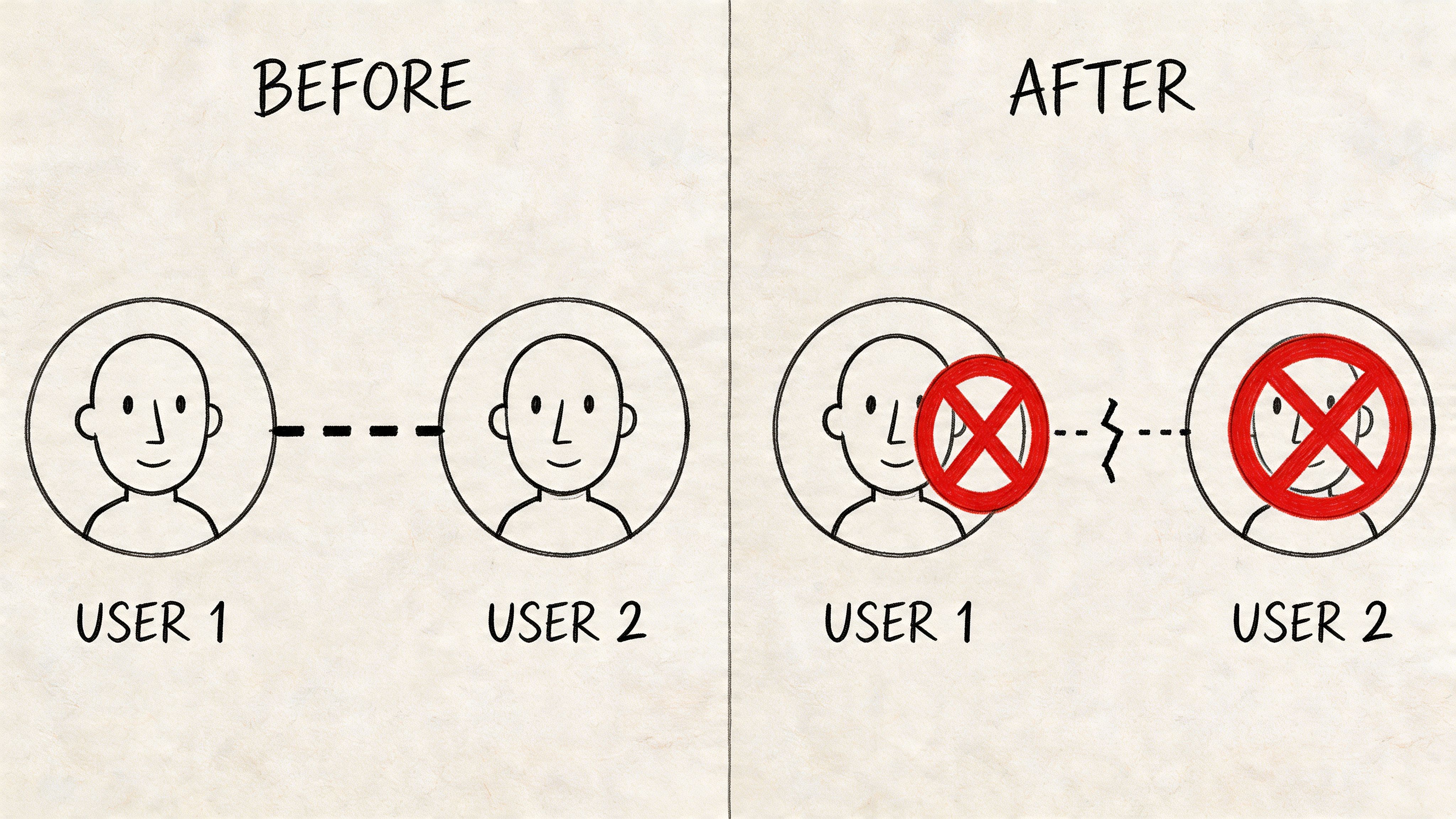
When you block someone, LinkedIn makes both profiles effectively invisible to each other. If you were connected before, that connection is severed. Endorsements and recommendations tied to that relationship are removed. You also stop appearing in each other’s profile-view and suggestion flows.
The blocked person also won’t receive a notification telling them you blocked them. That discretion is one reason blocking is useful for professionals who want distance without triggering another round of contact.
Here’s the practical version of what disappears after the block:
| Action area | What changes |
|---|---|
| Profile visibility | You can’t view each other’s profiles |
| Messaging | Contact through LinkedIn is cut off |
| Connection status | Existing connections are removed |
| Social proof | Endorsements and recommendations tied to that relationship are removed |
| Discovery features | You stop appearing in profile views and suggestion surfaces |
The hard limits matter more than most users think
LinkedIn imposes a strict limit of 50 people that any user can block at one time, and if you unblock someone, you can’t re-block that same person for 48 hours. That policy has remained consistent since at least 2019, according to InformationWeek’s coverage of LinkedIn’s block feature.
For a casual user, that might sound generous. For a sales team or recruiter dealing with repeated spam, fake profiles, or hostile contacts, it’s a real constraint.
Why the limit changes how you operate
A block list is not unlimited storage for everyone you dislike. It’s a scarce resource.
That means teams need a standard for who belongs there. If someone is merely noisy, mute them. If they’re irrelevant, remove the connection. If they’re unsafe, abusive, or consistently disruptive, block them.
Your block list should contain people you need distance from, not people you’re temporarily tired of.
The 48-hour re-block restriction matters too. If someone gets unblocked by mistake, or if a rep reverses the action impulsively, you can’t instantly restore the barrier. In an active outreach environment, that gap can expose the profile to unwanted views or contact.
This is why mature teams document block actions. They don’t treat them like personal feed cleanup. They treat them like an access-control decision.
Beyond Blocking Remove Mute or Report
Blocking is powerful, but it’s often the wrong first move. Most LinkedIn problems are lighter than they feel in the moment. If you use the strongest option every time, you’ll create cleanup work and burn through your limited block capacity faster than necessary.
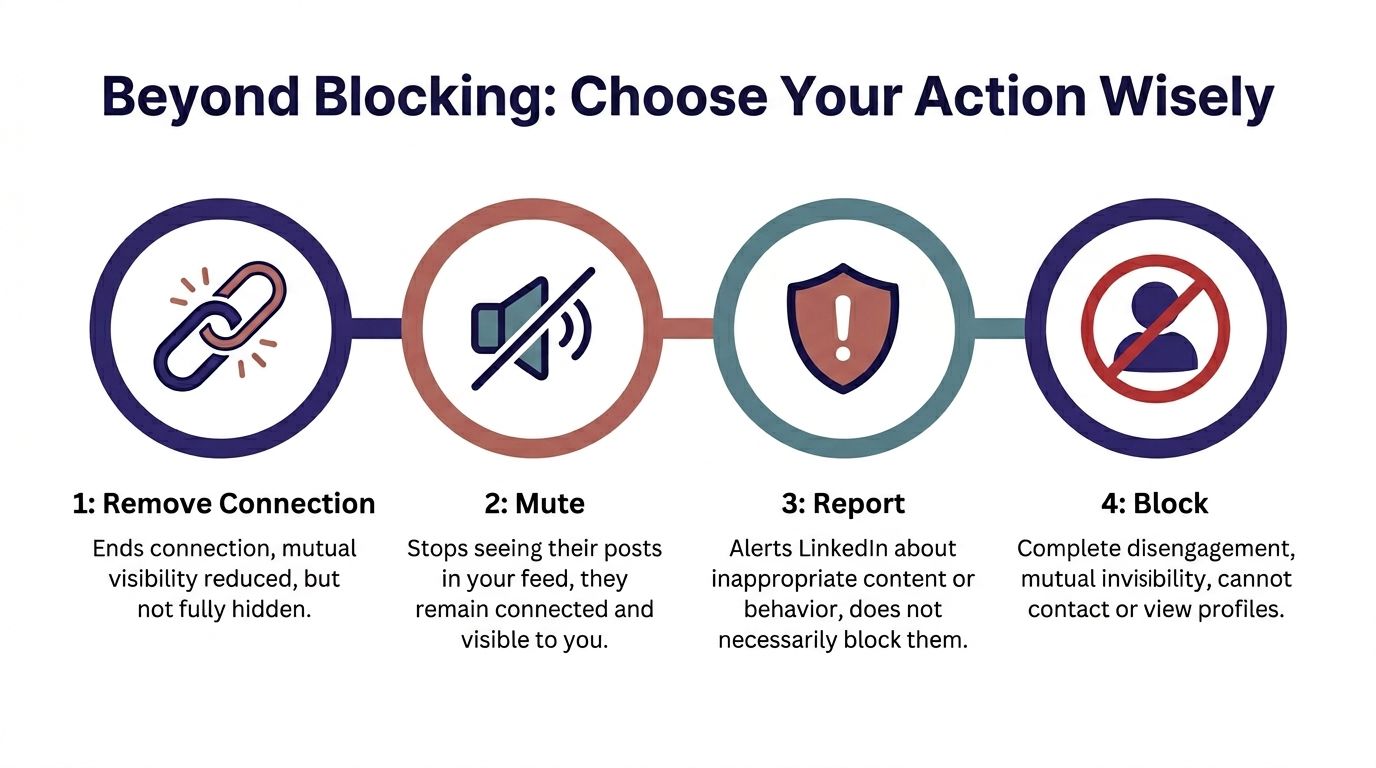
Choose the action that matches the problem
This is the mental model I use with outreach teams:
| Action | Best use case | What it does | When not to use it |
|---|---|---|---|
| Remove connection | You want separation without conflict | Ends the connection quietly | Not enough if the person keeps pushing in other ways |
| Mute | Their content is noisy, repetitive, or irrelevant | Stops their updates from cluttering your feed | Useless if the issue is direct contact |
| Report | Clear policy violations or abusive behavior | Alerts LinkedIn to review the behavior | Don’t use it for ordinary disagreement |
| Block | You need full disengagement | Cuts visibility and direct contact entirely | Too strong for simple feed annoyance |
Remove connection when the relationship is just over
Sometimes the right answer is not block people on LinkedIn. It’s to stop being connected.
Removing a connection works well when someone no longer belongs in your network but hasn’t done anything that warrants full invisibility. Former vendors, irrelevant recruiters, and low-fit prospects often fall into this category.
It’s quiet. It reduces closeness without creating a stronger response.
Mute when the problem is feed pollution
Some people aren’t a threat. They’re just exhausting.
They post constantly, comment bait, or fill your feed with recycled takes. If you still want to preserve access to the person, muting is cleaner than removing or blocking. Sales teams often forget this and end up overreacting to what is really just content fatigue.
Report when there is an actual policy issue
Reporting should be reserved for behavior that violates platform rules or crosses a professional line.
That includes harassment, fake representation, and clearly inappropriate content. Reporting is not a substitute for disagreement. It’s a compliance action, not a preference setting.
If your main complaint is “I don’t want to see this person,” mute or remove. If your complaint is “this person shouldn’t be doing this on the platform,” report.
Block when access itself is the problem
Use blocking when the person’s continued presence creates risk, distraction, or repeated friction.
That includes hostile prospects, repeat harassers, people monitoring your team in ways that make reps uncomfortable, and contacts who use LinkedIn less like a professional network and more like an intrusion point.
Good operators don’t ask, “Can I block them?” They ask, “What is the smallest action that solves the problem?” Sometimes the answer is block. Often it isn’t.
Strategic Blocking for Multi-Account Outreach Teams
Teams that run multiple LinkedIn accounts can’t afford reactive habits. A rep gets annoyed, blocks three people before lunch, then another account starts doing the same thing. By the end of the week, the campaign has a pattern that looks sloppy.
That’s how account damage starts. Not from one block, but from unstructured behavior repeated across profiles.
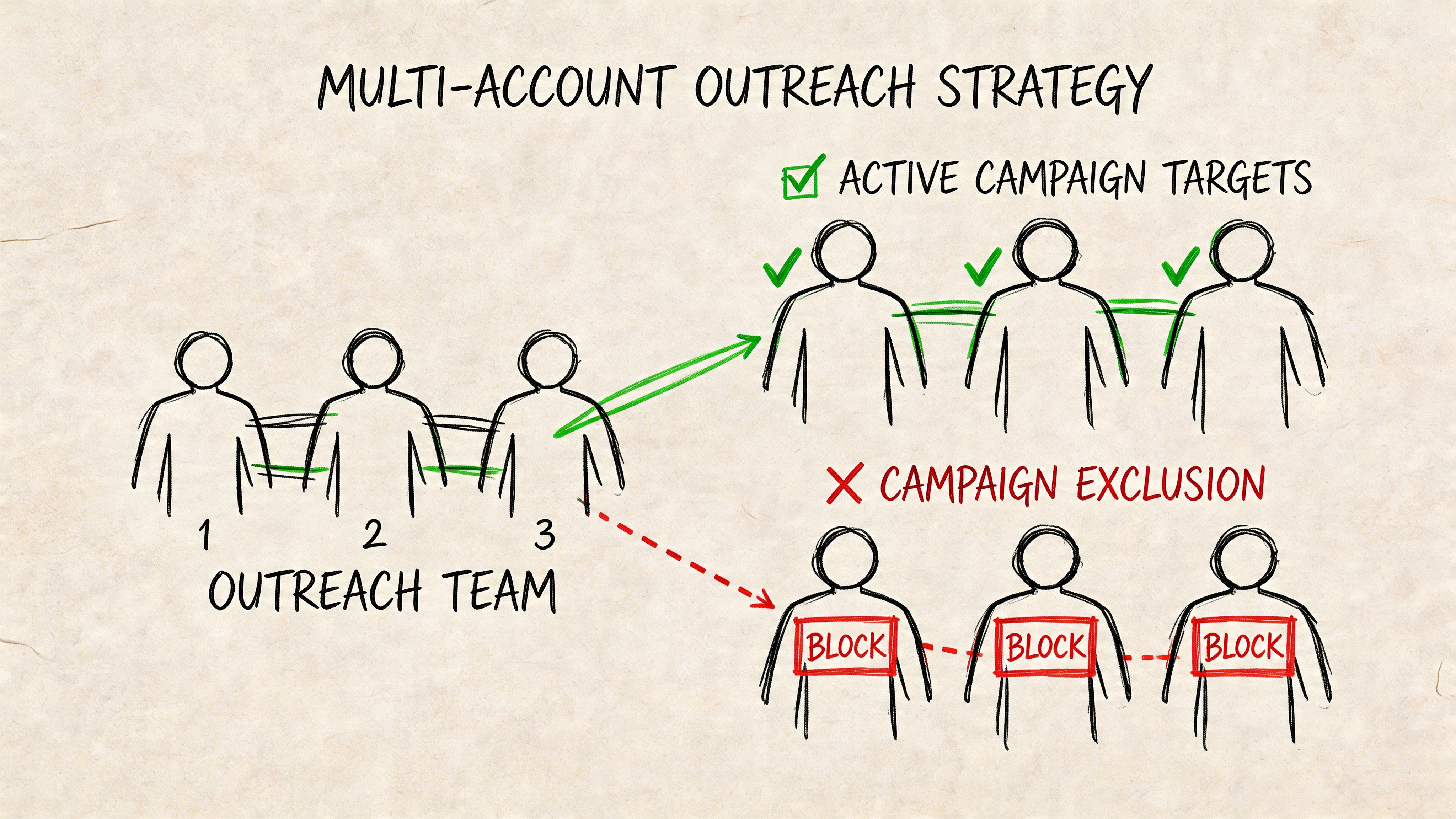
Safe blocking is about pacing and account quality
For multi-account outreach, blocking should stay under 5 per day on aged accounts with 200+ connections to maintain a 99% non-detection rate, and over-blocking at more than 20 per week on new accounts carries a 15% higher risk of restriction, according to HyperClapper’s discussion of LinkedIn blocking behavior.
That’s the practical reason warmed accounts behave differently from fresh ones. A profile with history, connections, and normal usage patterns has more room for controlled actions. A new profile doesn’t.
Blocking also has a profile-cost side effect. If you block a 1st-degree connection, LinkedIn automatically removes endorsements tied to that connection. For reps and founders who rely on visible credibility signals, that loss can matter.
What works in real outreach environments
The teams that handle this well use simple internal rules.
- Block only after classification: Mark the person as abusive, unsafe, competitor surveillance, or persistent spam. “Annoying” is not a category.
- Use the oldest suitable account for sensitive action: Mature profiles absorb operational friction better than fresh ones.
- Check connection status first: If it’s a first-degree contact with useful endorsements, weigh the cost before blocking.
- Log the reason in the CRM: If a teammate later sees the same lead from another account, they need context.
A lot of teams also review profiles privately before taking action. If you’re coordinating several accounts from one machine, this guide on managing multiple LinkedIn accounts from one device is useful because the block itself is only one part of the operational picture.
What does not work
The worst pattern is emotional blocking during live campaign work.
One rep gets a rude message and immediately blocks from the same account that still has active leads in the same niche. Another blocks everyone who says “not interested.” A third starts using blocking as inbox cleanup.
That behavior creates unnecessary signals and strips value from good profiles.
Plainly put, don’t use blocking as your rejection-management system.
A field-tested decision filter
Before any rep blocks a prospect, ask three questions:
- Is this person unsafe, abusive, or persistently disruptive?
- Would remove, mute, or no action solve it just as well?
- Is this the right account to take the action from?
If the answer to the first is no, blocking is usually excessive. If the answer to the second is yes, use the lighter option. If the answer to the third is no, route the decision to the account owner or team lead.
Strong outreach teams don’t just protect reply rates. They protect the trust profile of every account they operate.
How to Know If Someone Blocked You
LinkedIn creates a frustrating blind spot here. The platform doesn’t notify users when they’re blocked, which creates a real operational gap for outreach teams, as noted in The Muse’s explanation of LinkedIn blocking.
For an SDR or agency operator, that matters. You need to know whether a prospect is inactive, whether they removed a connection, or whether they actively shut the door.
The signals are indirect
You usually infer a block from a pattern, not a message.
Watch for signs like these:
- A profile you previously accessed is no longer reachable: Especially when teammates can still find it from other accounts.
- A first-degree connection disappears unexpectedly: That can happen for reasons other than a block, but it’s worth noting.
- Conversation continuity breaks strangely: A thread goes cold in a way that feels more like access loss than non-response.
- Only one account loses visibility: That points more toward profile-level blocking than a company-wide issue.
None of these signals are perfect by themselves. Together, they’re useful.
What to do with that information
Don’t turn suspected blocking into a guessing game inside the team. Put a process around it.
Create a CRM status for likely block events. Add notes about which account encountered the issue, what happened just before visibility changed, and whether the prospect should be excluded from future outreach. If your team runs several profiles, that note prevents another rep from retrying blindly and escalating the problem.
The big mistake is assuming silence means temporary disinterest. Sometimes it does. Sometimes the buyer has made a harder decision and LinkedIn doesn’t tell you.
Mastering Your LinkedIn Network Boundaries
People who use LinkedIn heavily eventually learn the same lesson. Access is not the same thing as obligation.
You don’t have to stay visible to everyone. You don’t have to remain connected to people who lower signal quality, create friction, or pull attention away from good work. Knowing when to mute, remove, report, or block people on LinkedIn is part of using the platform professionally, not defensively.
The strongest teams treat boundaries as part of account management. They don’t let reps improvise with high-value profiles. They document decisions, protect social proof where it matters, and reserve blocking for situations where full disengagement is justified. That discipline matters just as much as messaging quality or targeting quality.
It also fits into the broader mechanics of outbound. If you’re refining your system end to end, this proven LinkedIn lead generation strategy is worth reading because outreach performance depends on more than copy. It depends on account trust, process control, and knowing when not to push.
Long-term success on LinkedIn comes from owning your environment. Good boundaries protect people. Better boundaries protect accounts too.
If you need durable LinkedIn assets for safer scaling, BIDVA provides real, ID-verified, warmed-up accounts with full ownership. That’s useful for teams that want tighter control over outreach operations, stronger trust from day one, and less risk when managing multiple profiles.