Master Incognito Mode LinkedIn for Anonymous Research

LinkedIn’s private viewing mode—what most of us call incognito mode—is one of its most misunderstood features. In short, it lets you look at other people's profiles without them knowing you were there. It’s like being a secret shopper, gathering intel without ever revealing your identity.
What Is LinkedIn Incognito Mode and How Does It Work
Ever felt like you were tipping your hand by looking at a prospect's or competitor's profile? That’s the exact problem private mode solves. Think of it like a recruiter at a college game trying to scout talent without showing which team they represent. You get to observe, but you remain anonymous.
This isn't just a niche feature. Plenty of sales reps, marketers, and headhunters rely on it to do their research without alerting their targets. In fact, a deep dive on incognito usage from Quantable, based on 45,000 visitors, found that 5.8% of all users browse in private mode. That number even climbs to 8.2% on desktop, showing a real need for discreet research on the platform.
The Three Levels of Profile Visibility
LinkedIn gives you more than just a simple on/off switch for privacy. You actually get three distinct settings, each offering a different balance between your own anonymity and the insights you can gather about your own profile visitors.
Figuring out which one is right for you is the key to using this feature effectively.
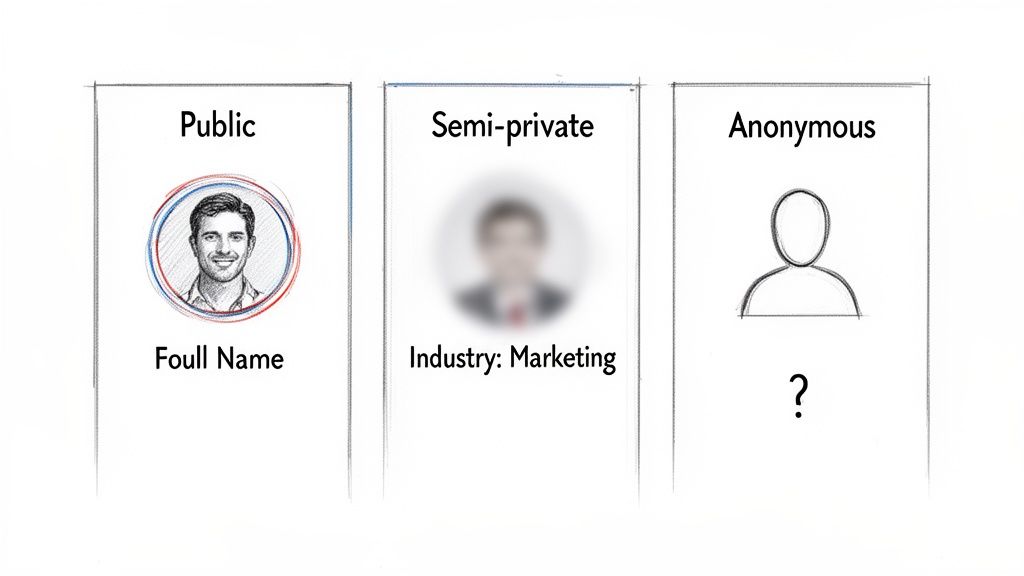
Here's a breakdown of your three choices:
- Public: This is the default. When you view a profile, that person sees your full name, headline, and a link back to your profile. No secrets here.
- Semi-Private: This setting hides your personal info but gives a little context. The person might see something like, "Someone in the Information Technology industry" or "Founder from San Francisco." It’s a hint, not an introduction.
- Private: This is full-on incognito. The profile owner is only told that "An Anonymous LinkedIn Member" viewed their profile. No name, no industry, zero clues. It's a total ghost mode.
The core trade-off is simple: the more privacy you gain for your research, the less data you receive about who is viewing your own profile.
LinkedIn Profile Viewing Options At a Glance
To really spell it out, let's compare what happens with each setting—both for the person you're viewing and for your own analytics. This is especially important if you're on a free LinkedIn account, as it directly impacts your ability to see who's checking you out.
| Viewing Mode | What Profile Owners See | Impact on Your Viewer Analytics (Free Account) |
|---|---|---|
| Public | Your full name, headline, and profile link. | You can see the full list of who viewed your profile recently. |
| Semi-Private | Anonymous details (e.g., job title and industry). | Your "Who's Viewed Your Profile" feature is completely disabled. |
| Private | "Anonymous LinkedIn Member" with no other details. | Your "Who's Viewed Your Profile" feature is completely disabled. |
So, the moment you switch to Semi-Private or Private mode, you lose access to your own viewer history. For anyone who uses their "Who's Viewed Your Profile" page to find warm leads, that’s a pretty big sacrifice. You're giving up a valuable source of intel in exchange for your own browsing privacy.
How to Enable Private Mode on Desktop and Mobile
Alright, let's get you browsing in incognito mode. Switching it on is simple once you know which menu to dive into. LinkedIn has tucked this setting away, but the steps are almost the same whether you're on your computer or your phone.
Here’s a quick walkthrough to take control of your visibility.
Enabling Private Mode on a Desktop Browser
On the main LinkedIn website, you’re just a few clicks away from going private.
- Click the Me icon (with your profile picture) in the top navigation bar and select Settings & Privacy.
- On the left-hand menu, click on the Visibility tab.
- From there, choose Profile viewing options. This is the control panel for what others see when you visit their profile.
You'll see the three different modes, letting you decide exactly how you want to appear—or disappear.
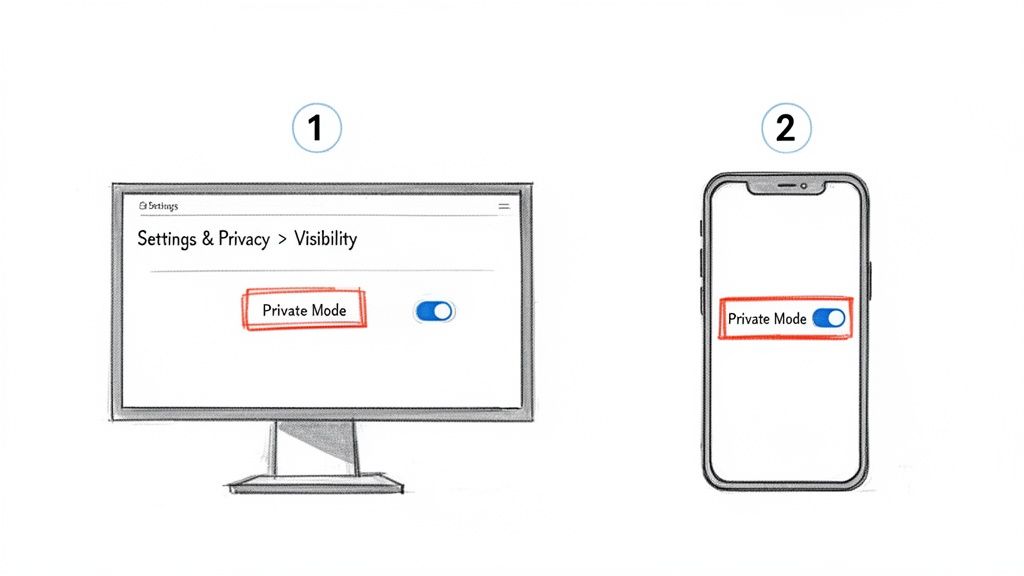
Simply select either semi-private or full Private mode to start browsing without leaving a trail.
Enabling Private Mode on the Mobile App
The process is just as quick on the mobile app. You're following a nearly identical path through the settings.
- Tap your profile picture in the top-left corner, then tap Settings.
- Find and select the Visibility tab.
- Tap Profile viewing options and pick your level of privacy.
Heads-Up: If you switch back to public mode, just know that your "Who's Viewed Your Profile" analytics are paused. There’s a 24-hour delay before they start working again, and any views you made while anonymous won't show up later.
This is a really important detail to remember. You can't just flick incognito mode on LinkedIn on and off without a small impact on your own analytics. Plan ahead to avoid having frustrating gaps in your profile view data.
The Hidden Costs of Browsing Anonymously
Let's be honest, the idea of browsing LinkedIn profiles without leaving a trace is tempting. But there’s a catch, and it's a big one for anyone who uses the platform for lead generation or networking. The price you pay for that privacy is your most valuable source of passive interest: your profile view analytics.
When you switch to private mode, you've essentially put frosted glass on your shop window. You can peek out, but you can't see who’s peering in. More importantly, you lose the record of who stopped by.
The Analytics Blackout for Free and Premium Users
So, what exactly do you lose? The impact of incognito mode on LinkedIn depends on your account type, but the theme is always the same: you're trading data for stealth. For sales pros who rely on profile views to spot warm leads, this creates a major blind spot.
Here’s how it breaks down:
For Free LinkedIn Users: The effect is instant and absolute. The second you go private, your "Who's Viewed Your Profile" list vanishes. It’s completely empty. You won’t see a single person who visits your profile until you switch back to being fully visible.
For Premium LinkedIn Users: If you're on a paid plan like Sales Navigator or Recruiter, you don't get a total blackout, but it's still far from ideal. You can still see your 90-day viewer history, but anyone who checked you out while they were in private mode just shows up as "Anonymous LinkedIn Member." You get a notification that someone was there, but you have no clue who they were, what company they're from, or why they were interested.
This isn't a small detail. Think about it. An analysis of over 45,000 profile visitors found that while 5.8% of all users browse privately, that number jumps to a hefty 10.3% in certain high-stakes B2B industries. By going private yourself, you lose the ability to identify these cautious, high-intent prospects.
As the team at Skylead points out, even after you switch back to public mode, the data from your time spent incognito is gone forever. Your analytics will kick back in after about 24 hours, but they will permanently exclude anyone who viewed you during your stealth session, a detail you can discover in their full analysis.
Browsing anonymously means you are actively shutting down a stream of inbound interest. You're giving up the chance to spot potential clients, partners, or recruiters who were curious enough to look you up.
Ultimately, you have to make a strategic choice. Is the momentary privacy you gain from researching a few profiles worth more than a potential warm lead finding you? For most people in sales and recruiting, the answer is a clear "no." It makes private mode a tool you should use sparingly, not as your default setting.
Strategic Use Cases for Sales and Recruiting
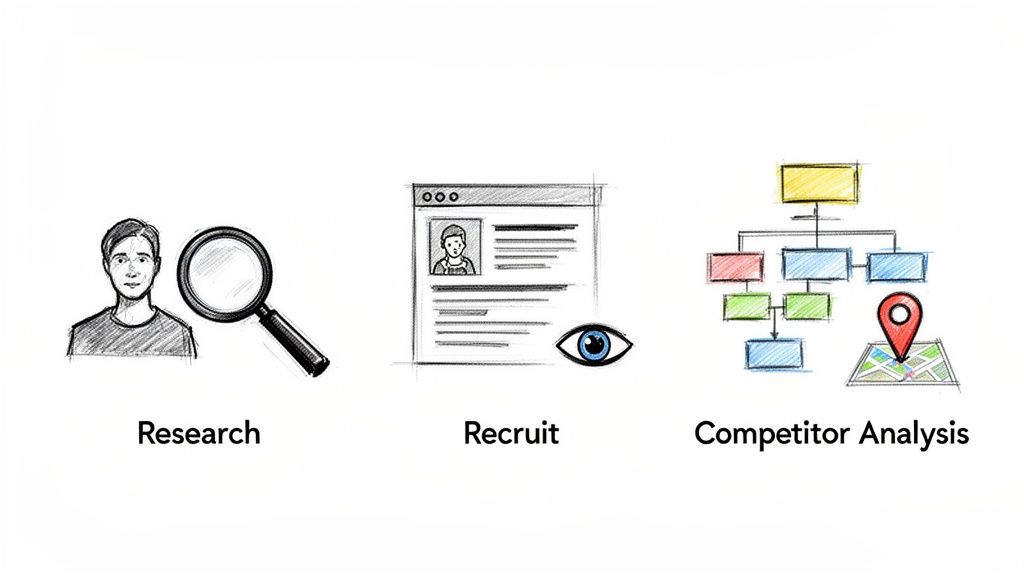
Knowing how incognito mode on LinkedIn works is one thing. Knowing exactly when to use it is what separates the pros from the amateurs. Private mode isn't something you should leave on all the time. Think of it more like a scalpel in your surgical kit—a specialized tool you pull out for specific moments where stealth matters more than visibility.
For anyone in sales or recruiting, the trick is to be selective. You need to gather intelligence without tripping any alarms that might tip off your prospects or competitors. It’s all about being a quiet observer before you make your big move. In a marketplace this loud, that strategic silence can be your biggest advantage.
Initial Research for Sales Development
If you're a Sales Development Representative (SDR), the initial research phase is the perfect time to go dark. Before you even think about sending a connection request or an InMail, you're mapping out an organization, figuring out who the real decision-makers are, and getting a feel for their day-to-day challenges. Private mode lets you do all this detective work without leaving a trail of digital breadcrumbs.
Imagine you're building a hyper-targeted list of 50 prospects at a dream account. If every single one of them gets a "viewed your profile" notification, your outreach campaign is dead on arrival. You've lost the element of surprise, and they’ll likely be more guarded or just plain ignore you when you finally reach out.
By browsing anonymously, you can gather all the intel you need—job titles, recent posts, key connections—to build a complete picture. Once your list is locked in and your messaging is sharp, you flip back to public mode to start your outreach. To them, you're a new, relevant professional, not someone who's been lurking on their profile for a week.
This simple switch makes your first touchpoint feel authentic and well-researched, not like the final step in a surveillance mission. For more on making that first contact count, check out our guide on how to use LinkedIn for sales with verified accounts.
Discreet Candidate Sourcing for Recruiters
Recruiters are in the same boat, especially when headhunting passive candidates. We're talking about the top-tier talent who aren't actively job searching. These folks are usually happily employed, often at competitor companies. A public profile view from a known recruiter can stir up trouble, cause awkward conversations, or even alert their current boss.
This is where incognito mode on LinkedIn becomes absolutely essential. It’s your ticket to operating with discretion.
- Vet potential candidates without making them feel like they're being poached or put on the spot.
- Explore entire teams at rival companies to quietly identify their star players.
- Deep-dive into profiles to check for specific skills and experience before deciding if they're the right fit.
After you've found a promising candidate, you can then make a calculated decision about your approach. Maybe you switch to public mode and send a direct message, or perhaps you find a mutual connection to make a warm introduction. Either way, you’ve maintained your professionalism and respected the candidate's delicate position.
Competitive and Market Analysis
Beyond direct outreach, private mode is a goldmine for competitive intelligence. Founders, agency owners, and marketers can use it to peek behind the curtain at their competition without revealing their own playbook.
You can map out a competitor's entire org chart, see who they've hired recently, and scrutinize their key employees' profiles to get clues about their next big move. It’s the business equivalent of walking through a rival's store to check their prices and merchandising, all without the manager ever knowing you were there.
The Limits of Incognito Mode for Account Safety
It's a common mistake to think that incognito mode on LinkedIn makes you invisible. This is a huge and dangerous misunderstanding. While private browsing does hide your identity from the people whose profiles you visit, it does absolutely nothing to hide your activity from LinkedIn's own security systems.
Thinking incognito mode will protect you while running multiple accounts is like trying to sneak through airport security with a fake mustache. It’s just not going to work. LinkedIn can still see your IP address, your browser fingerprint, and a whole host of other technical details that pinpoint exactly who you are and where you are. From their perspective, you're not anonymous at all.
This means if you're using incognito mode to hop between different client or company profiles on the same computer, you're practically begging to get your accounts flagged. LinkedIn's algorithms are built to catch this kind of behavior, and they'll shut you down for violating their one-person-one-account rule.
Why Incognito Is Not an Invisibility Cloak
Think of LinkedIn as a high-security building. Using private mode is like turning off the lights in your hotel room—people on the street can't see you, but the building's security team is still watching you on their cameras. They know exactly which room you're in and what you're up to.
Incognito mode on LinkedIn gives you user-to-user privacy, not user-to-platform privacy. This is a critical distinction for sales and recruiting teams who often manage multiple accounts. For instance, some theories suggest that prepping an account anonymously before outreach can lower ban risks. But there's a major trade-off: prospects won't get a notification that you viewed their profile, which can slash your inbound connection requests by an estimated 15-25%.
Incognito mode hides you from people, not from the platform. Your IP address and browser data are still fully visible to LinkedIn’s security systems.
While this feature provides a thin layer of privacy, it's not a real solution for staying under the radar. For stronger protection, you should look into dedicated internet privacy tools that offer much more than a simple browser setting.
True account safety, especially when scaling outreach, requires a far more robust strategy. To learn more, check out our guide on advanced LinkedIn account security measures.
A Modern Framework for Safe LinkedIn Automation
Let’s get one thing straight: relying on incognito mode on LinkedIn to stay safe while automating is a massive mistake. It’s a common misconception. While it does hide your profile from other users, it does absolutely nothing to hide your activity from LinkedIn’s own security systems. Your digital footprint is still completely exposed.
For agencies and sales teams running multiple accounts, this is a recipe for disaster. It’s a fast track to getting your accounts flagged, restricted, or worse.
So if private mode isn't the silver bullet, what actually works? The answer isn't a single trick. It’s a multi-layered security strategy that the pros use to run high-volume outreach without getting shut down. Think of it as building a digital fortress around each account you manage.
The Three Pillars of Account Safety
To operate at scale, your goal is to make each account appear completely unique and legitimate in the eyes of LinkedIn’s platform. This comes down to controlling three core technical elements: your IP address, your browser fingerprint, and the basic trustworthiness of the account itself.
1. Dedicated Proxies
A proxy server acts as a middleman for your internet connection, assigning your account a different IP address. By using a dedicated residential proxy, you give each LinkedIn profile its own unique, legitimate home IP. This makes it look like every account is being managed from a completely different house, on a different network.
2. Anti-Detect Browsers
These are specialized browsers designed to create a distinct digital "fingerprint" for each of your profiles. They spoof everything from your operating system and screen resolution to the fonts and browser plugins you have installed. This stops LinkedIn from connecting the dots and realizing multiple accounts are being run from the same computer.
3. High-Trust Accounts
Where you start makes a huge difference. An account that’s been around, has a history of normal activity, hundreds of connections, and has been ID-verified is inherently more trusted by the platform than a brand-new profile.
The gold standard for safe automation is combining dedicated proxies, anti-detect browsers, and high-trust, warmed-up accounts. This combination creates a truly isolated environment for each profile, drastically reducing detection risk.
This diagram shows you exactly where incognito mode fits in—or rather, where it doesn't. Platform-level security is the top layer, watching everything.
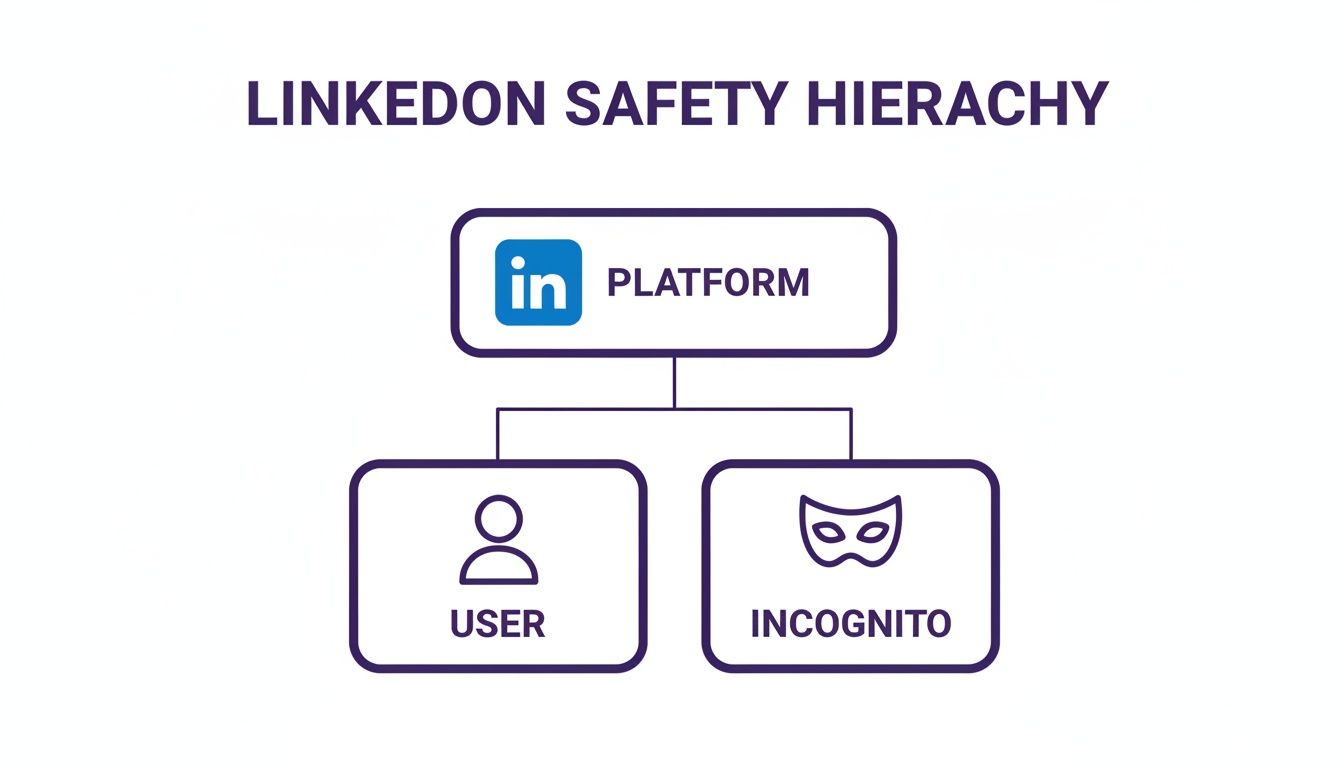
As you can see, incognito mode only impacts what other users see. It offers zero protection from LinkedIn's platform-wide monitoring.
Starting with properly aged and warmed-up accounts from a provider like BIDVA gives you an incredible head start. These profiles already have the established history and connections that build a strong, trustworthy foundation for your outreach campaigns. To get the most out of this approach, it helps to understand broader social media automation strategies and apply those best practices to LinkedIn.
By layering these tools and starting with high-quality accounts, you’re not just avoiding bans—you’re protecting your investment and ensuring your outreach engine runs smoothly. For a complete step-by-step guide, check out our deep dive on a safe LinkedIn automation workflow that reduces ban risk. This is the modern blueprint for scaling your efforts the right way.
Frequently Asked Questions
Let's clear up some of the common questions and misconceptions that pop up around using incognito mode on LinkedIn. Getting these details right is key to using the feature effectively.
Can People See If I View Their Profile in Private Mode?
Nope. When you go fully private, you're essentially a ghost. The profile owner gets a notification that "Anonymous LinkedIn Member" stopped by, but that's it—no name, no headline, nothing to identify you.
If you choose the semi-private option, they'll see a vague description like "Sales Development Representative at a Tech company," but your personal name and profile are still hidden.
Does Incognito Mode Stop LinkedIn from Tracking Me?
This is a big one: No, it doesn't. Private mode only hides your identity from other users on the platform. LinkedIn itself can still see everything.
Think of it like wearing a mask in a store. Other shoppers won't recognize you, but the store's security cameras still record your every move. LinkedIn still logs your IP address and all your activity, which is exactly why incognito mode is not a safe solution for managing multiple accounts or running automation tools.
The bottom line: Incognito mode makes you invisible to people, not the platform. LinkedIn's security systems see your digital footprint perfectly clearly.
Will I Lose My Profile View History Forever?
You won't lose your past history of who viewed your profile. However, while private mode is turned on, you give up the ability to see who views your profile (if you have a free account).
Once you switch back to public mode, the feature comes back, but any views that happened while you were anonymous are gone for good. You can't retroactively see who visited during that time.
Is It Better to Always Be in Private Mode?
Definitely not. If you stay in private mode all the time, you're missing out on one of LinkedIn's most powerful, subtle features: curiosity. When a prospect sees you've viewed their profile, it can spark their interest and lead to valuable inbound connections and opportunities.
The best approach is to use private mode strategically. Flip it on for specific tasks like competitor research, then switch back to public for your day-to-day networking and outreach.
To run high-volume outreach safely and effectively, you need more than just incognito mode. BIDVA provides real, ID-verified, and warmed-up LinkedIn accounts that give your campaigns a foundation of trust and durability. Protect your assets and scale with confidence by visiting the official BIDVA website.