My LinkedIn Account Was Hacked: Immediate Recovery Steps

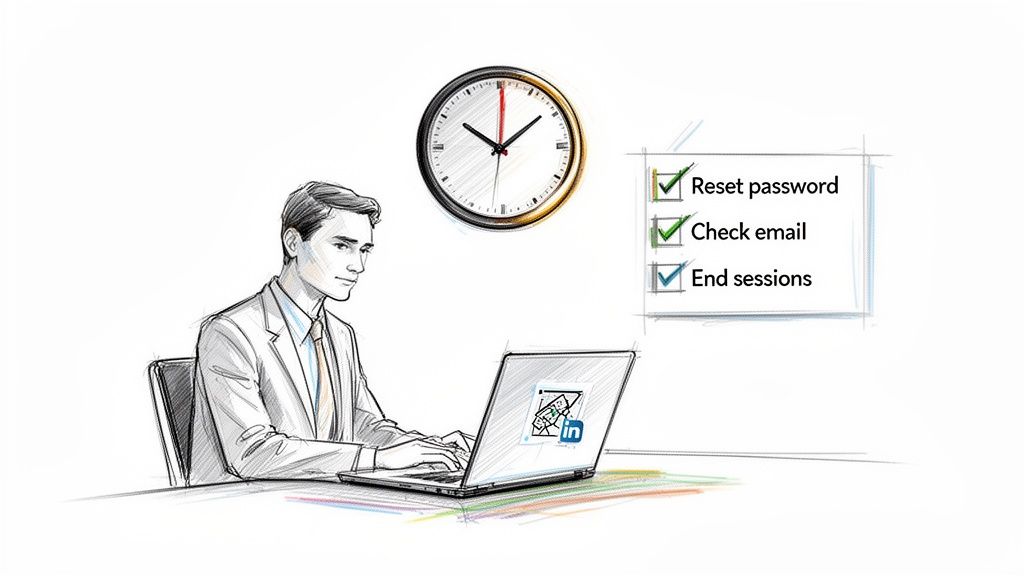
That sinking feeling in your stomach is unmistakable. You've just realized your LinkedIn account has been hacked. Your first instinct might be to panic, but what you do in the next 30 minutes is absolutely critical to getting your professional identity back and minimizing the fallout.
This isn't the time for a deep investigation. This is triage. Your only goals right now are to kick the intruder out and regain control.
Your Immediate 30-Minute Action Plan
The first signs can be blatant or surprisingly subtle. Maybe you're completely locked out and your password suddenly doesn't work. Or perhaps you're seeing bizarre posts on your feed, messages you know you never sent, or connection requests from total strangers.
Whatever the red flag, you have to act fast.
First Triage: Can You Still Log In?
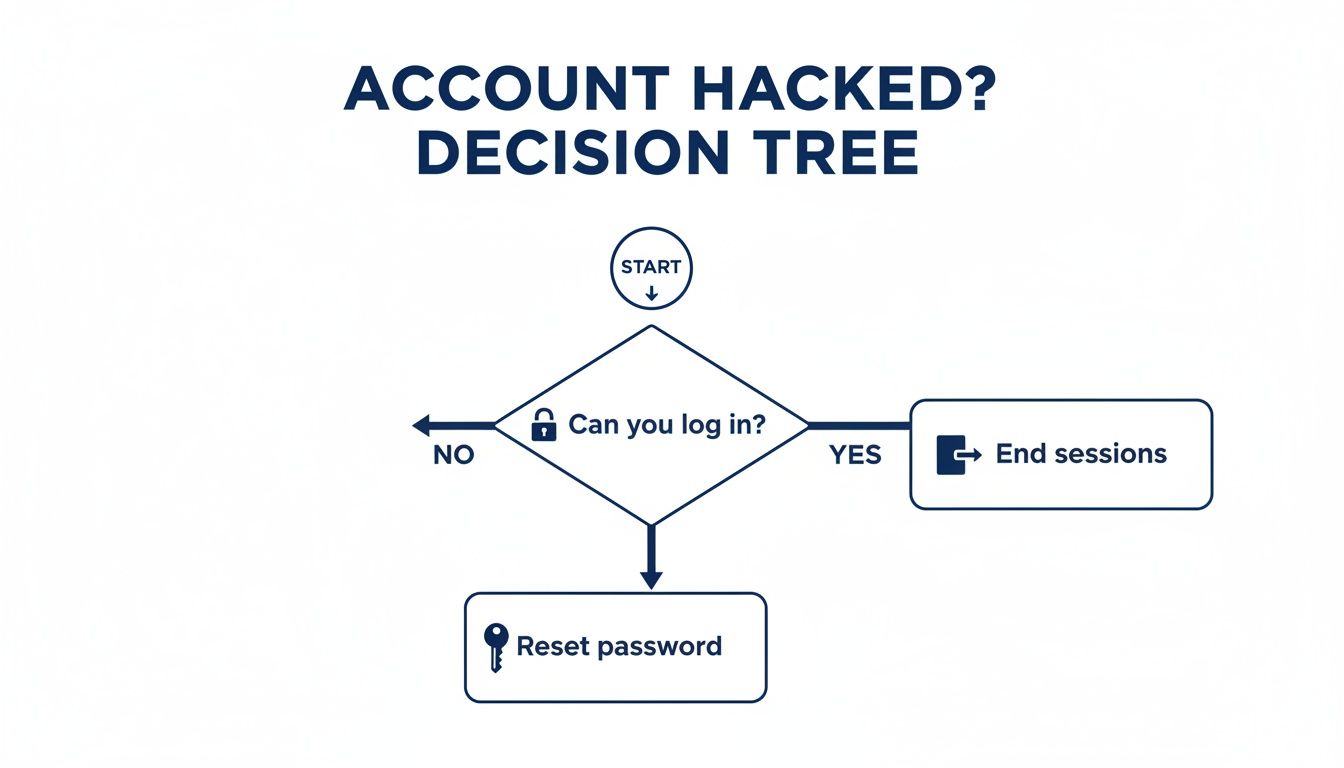
Everything hinges on one simple question: can you still access your account? Your answer will point you to your immediate next step.
If you can get in: Don't hesitate. Your first move is to forcibly end all other active sessions. This is how you boot the hacker from your account. Navigate to "Settings & Privacy," then "Sign in & security," and find the "Where you're signed in" section. From there, you can end every single session. Once that's done, immediately change your password to something new and strong.
If you're locked out: This almost certainly means the attacker has already changed your password. Head to the LinkedIn login page and click the "Forgot Password?" link. This will trigger a reset link to be sent to your email. Be sure to check every email account you might have linked to your profile, and don't forget the spam folder.
This decision tree breaks it down visually. Your path forward is all about whether you still have access.
Sometimes the signs of a compromise are clear, but other times they're harder to spot. Use this quick reference to identify what might be happening and what to do first.
Immediate Actions Based on Hack Type
| Symptom of Hack | Most Likely Cause | Your First Action |
|---|---|---|
| Locked out of account; "Forgot Password" doesn't work | Hacker changed your password and primary email address | Immediately find LinkedIn's security email and click the link to report the unauthorized email change. |
| You see posts or messages you didn't create | Hacker has an active session on your account | Log in, go to "Where you're signed in," end all sessions, and then change your password. |
| Your profile picture or bio has been changed | Attacker is actively trying to deface your profile or impersonate you | Follow the same steps: end all sessions, change your password, and revert the profile changes. |
| You get an email from LinkedIn about a new sign-in | Unauthorized access, but they may not have changed credentials yet | Immediately go to your sessions and end the unfamiliar one, then change your password. |
No matter the scenario, quick, decisive action is your best defense once the breach has already occurred.
Assessing the Initial Damage
As you're taking these first critical steps, keep an eye on your inbox. You're looking for any security alerts from LinkedIn about recent account changes. A common tactic for hackers is to quickly change the primary email on your account, which is their ticket to locking you out for good. If you see an email alert about an email change you didn't make, you must click the link in that message to report it to LinkedIn right away.
We've seen this happen countless times. You can learn more about protecting your email access in our deep-dive on best practices for LinkedIn: https://www.buy-id-verified-account.com/post/master-email-access-best-practices-linkedin-2026
A Lesson from Experience: Time is not on your side. Attackers work quickly. In the time it takes to grab a coffee, they could be downloading your entire list of connections, sending phishing links to your most valuable clients, or altering your profile to ruin your reputation. Every second counts.
For those who manage teams or simply want a more structured approach, having a personal incident response playbook template can be a lifesaver. While it sounds corporate, the core idea—having clear, pre-defined steps—is invaluable for navigating a personal crisis like this one.
Okay, take a breath. By following these immediate containment actions, you’ve done the most important thing to stop the bleeding. Now you can shift from emergency mode into the official recovery process.
Once you’ve contained the immediate damage, it’s time to work directly with LinkedIn to get your account back. This isn’t just a simple password reset; you’re going to have to prove you’re the rightful owner, and that means dealing with LinkedIn’s official recovery process. It can test your patience, but it’s the only reliable way to regain control.
Unfortunately, account takeovers are more common than you'd think, often fueled by massive data leaks. Think about the June 2021 incident where data from nearly 700 million accounts—a staggering 92% of LinkedIn's 756 million users at the time—was scraped by attackers. While passwords weren't directly stolen, hackers used LinkedIn's own API to harvest public profile data, which they then used to orchestrate targeted attacks just like this.
Starting Your Official Recovery Case
First things first, you need to report the hacked account. Since you're likely locked out, you can't just go through the normal help center. You have to use LinkedIn's dedicated form for compromised accounts.
Before you even click the link, get your information together. Having this ready will save you a lot of frustration.
- Your Profile URL: This is the direct link to your profile (e.g.,
linkedin.com/in/your-name). If you don’t have it memorized, a quick Google search for your full name and company usually brings it right up. - The Associated Email Address: You’ll need to provide the email you used to log in, even if the hacker has already changed it. If you had multiple emails linked to the account, list all of them.
- A New, Secure Email: This is critical. LinkedIn needs a safe channel to communicate with you, so provide an email address you know is secure and that the attacker can't access.
Getting Through Identity Verification
This is the make-or-break moment. Because the hacker likely changed your password and email, LinkedIn has to verify you're you, and they do this by checking your government-issued ID. There's no way around this step.
You'll be prompted to upload a photo of your driver's license, passport, or another national ID card.
To avoid getting your request kicked back, make sure your photo is perfect:
- Crystal Clear: The picture has to be sharp and well-lit. Every word, including your name and expiration date, must be easy to read.
- Show the Whole Thing: Don't crop the photo. Make sure all four corners of the ID are visible in the shot.
- Name Must Match: The name on your ID should match your LinkedIn profile name. If it doesn’t, you’ll need to use the provided text box to explain the discrepancy (e.g., a recent marriage or legal name change).
Expert Tip: The quality of your ID photo is the single biggest factor in how quickly you get your account back. I’ve seen cases drag on for weeks simply because of a blurry or cropped image. Take the extra minute to get it right the first time.
After you submit your ticket, you'll get an automated confirmation. Then, the waiting begins. A real person has to review your case, which can take anywhere from a few days to a couple of weeks if things are complicated.
A Real-World Example
I once worked with a sales manager who found himself in this exact situation. His account was hijacked and used to send phishing messages to his most important clients—a total nightmare. He was completely locked out.
He immediately filed a report with a clear photo of his passport and a list of all his known email addresses. After four days with no response beyond the automated confirmation, he replied to the ticket email, politely restating his case number and stressing the ongoing damage to his professional reputation.
It worked. A day later, a support agent got back to him with a secure link to reset his credentials. His story shows that being persistent, yet polite, can make all the difference. Sometimes, this kind of hack can even lead to a situation where a LinkedIn account restricted message appears, which involves a similar but distinct recovery path.
Conducting A Post Hack Damage Audit
Getting back into your account is a huge relief, but the work isn’t over yet. Now you have to shift gears from emergency response to digital detective. You have to assume the attacker touched everything, and it’s your job to meticulously audit your account to find and reverse the damage before it torpedoes your professional reputation.
Think of it as a forensic investigation of your own digital space. This process is critical. If you don't find and undo unauthorized changes or messages, you could be dealing with the fallout—like long-term trust issues with your network—for months to come. Start by treating your profile as a potential crime scene and document everything you find.
Your Profile And Settings Checklist
First, let's tackle the most visible parts of your account: your public-facing profile and private settings. Hackers often make subtle changes designed to cause chaos, steal opportunities, or simply make you look bad.
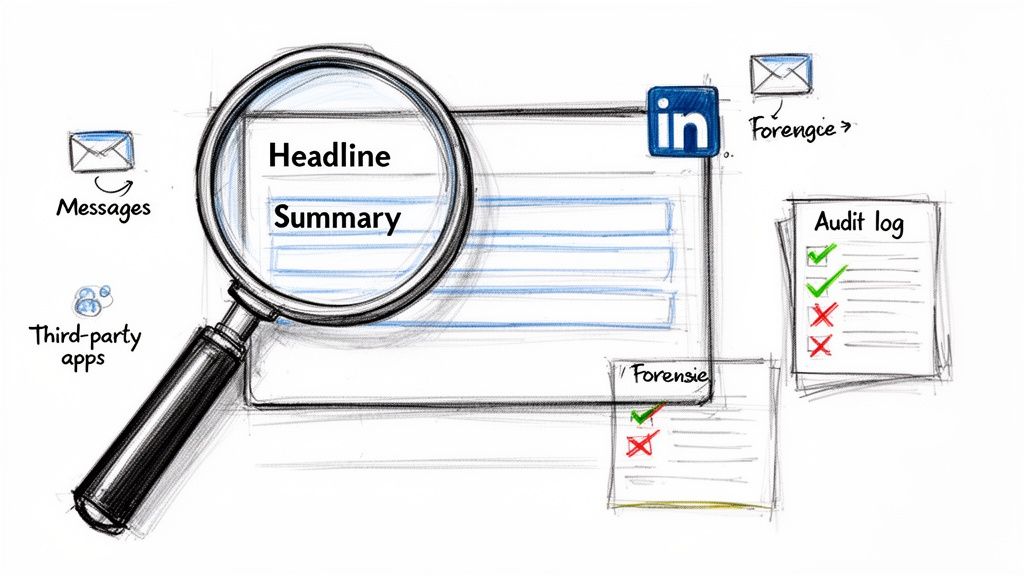
Go through your profile piece by piece, checking these key areas for any unauthorized modifications:
- Headline and Summary: Has your professional title been altered? Look for strange links or odd messages buried in your summary.
- Work Experience and Education: Attackers might add bogus jobs or remove legitimate ones to discredit you.
- Contact Information: This is a huge one. Make sure your email addresses, phone number, and website links are all yours and haven't been swapped out.
- Profile Picture and Banner: Ensure your images haven't been replaced with something inappropriate or unprofessional.
Once the public-facing side is clean, dive deep into your security settings. Go to the "Sign in & security" section and comb through every option. Pay special attention to "Email addresses" and "Phone numbers" to ensure no strange contact methods were added. This is a classic backdoor attackers leave for themselves to regain access later.
Auditing Your Account Activity
With your profile secured, it’s time to figure out what the hacker did while they were in control. This means reviewing your messages, connection requests, and activity feed. This is often where you'll find the most significant damage.
Your primary focus should be on your private messages. Go through your sent folder and methodically scan for anything you don't recognize. Hackers love using compromised accounts to send phishing links or malware to an owner's trusted connections, trading on your good name to trick others.
A Recruiter's Nightmare: We worked with a corporate recruiter whose account was hijacked. The attackers didn't deface her profile; instead, they posted several fake, high-paying job listings. They then used her account to message dozens of hopeful applicants, directing them to a phishing site designed to steal personal information. By documenting every fake post and sent message, she was able to work with her company's PR team to issue a clarification, protecting both her reputation and her employer’s.
This kind of systematic review is your best defense against lasting reputational damage.
Connections And Third Party Apps
Finally, you need to clean up your network and cut off any permissions the attacker may have granted. This is all about severing any remaining access points and removing malicious additions they might have planted.
There are two critical places to check:
- Review Recent Connections: Go to "My Network" and look at your recently added connections. Attackers often add other fake or malicious accounts to expand their network for future scams. Don't hesitate to remove anyone you don’t know or trust.
- Scrutinize Third-Party Apps: Navigate to your "Data privacy" settings and find "Permitted services." This page lists every third-party app with access to your LinkedIn data. If you see anything you don't recognize or no longer use, revoke its access immediately. This is a crucial step that far too many people miss.
Completing this full damage audit is non-negotiable. It's the only way to be absolutely certain you've reclaimed your account, repaired the immediate harm, and sealed any backdoors the attacker left open. Once you’ve done this, you can finally move on to repairing your professional reputation.
Repairing Your Professional Reputation
Once you’ve figured out what the hacker did, the real work begins: managing the fallout and rebuilding trust. A compromised account can cause serious damage to your professional standing, and how you communicate what happened is everything. The key is to be transparent and reassuring without causing a panic.
This isn't the time to share a blow-by-blow technical account of when my LinkedIn account was hacked. Instead, you need to show you're in control, taking responsibility, and committed to your professional integrity. For most situations, a single, carefully worded public post is the perfect place to start.
Crafting a Public Announcement
Your public post needs to be brief, professional, and straight to the point. Resist the urge to use emotional language or write a novel about the experience. Just state the facts: your account was compromised, it's now secure, and you're sorry for any weird activity.
Here’s a simple, effective message you can adapt. It strikes the right balance between being informative and maintaining your composure.
Subject: An update on my LinkedIn account security
"Hi everyone, I wanted to let you know that my LinkedIn account was recently compromised by an unauthorized party. I have since regained full control and secured the account. I sincerely apologize if you received any unusual messages or saw any strange activity from my profile during this time. Thank you for your understanding."
This approach works because it’s direct, takes ownership, and reassures your network that the issue is resolved. It's a critical first step in mending fences.
Reaching Out to High-Value Contacts
A public post is great for your wider network, but your most important contacts deserve a personal touch. Think about your clients, top prospects, and close colleagues—anyone who the hacker might have specifically targeted. For this group, a private message is essential.
You can be a bit more detailed here, but keep it professional. Acknowledge the breach and personally apologize if they were on the receiving end of a malicious message.
Here’s a simple framework for that private message:
- For a Client or Prospect: "Hi [Name], I'm writing to personally apologize. My LinkedIn account was compromised recently, and I’m concerned you may have received a strange message from my profile. I've secured my account, but I wanted to reach out directly to express my regret for any confusion this may have caused. I value our connection and wanted to ensure you heard from me personally."
This small gesture shows you value the relationship enough to reach out one-on-one, which goes a long way.
Managing the Aftermath
Even after you've notified everyone, some issues might linger. For example, if the hacker sent out a flood of spammy messages, other users might have reported your account. This can sometimes trigger temporary restrictions from LinkedIn, even after you've gotten it back.
If that happens, you’ll have to contact LinkedIn Support again. Be sure to explain the situation and provide the case number from your original report to speed things up.
Finally, think of this as a forced opportunity to do some housekeeping. Once the dust settles, it’s the perfect time to give your profile a once-over. Ensuring everything is accurate and professional is a great way to re-establish your credibility. You can learn more by mastering your LinkedIn Profile Optimization.
Building a Fortress Around Your LinkedIn Account
Once you've managed to get back into your account and surveyed the damage, the next step is crucial: making sure this never, ever happens again. When I hear someone say, "my LinkedIn account was hacked," it’s almost always because a few foundational security measures were overlooked. Let's go beyond just changing your password and build a proper defense around your professional identity.
Make no mistake, account takeovers are an epidemic now. We saw a staggering 1.2 million LinkedIn hacks reported in 2025 alone across major global markets. This wave was largely fueled by past data breaches, like the massive June 2021 scrape that exposed details from 700 million profiles—that’s 92% of the user base at the time.
Attackers used that goldmine of data to launch relentless brute-force and phishing campaigns, causing a 250% spike in attacks aimed squarely at sales professionals and recruiters.
Activate Non-Negotiable Two-Factor Authentication
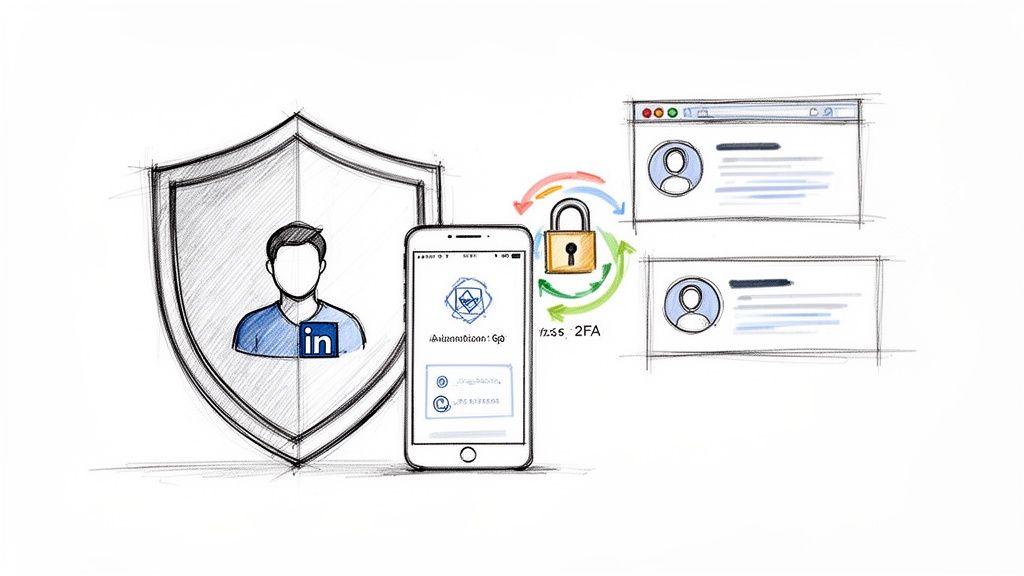
If you only do one thing after reading this, do this: turn on Two-Factor Authentication (2FA). But here's a pro tip—not all 2FA is created equal. Using SMS for your second code is better than nothing, but it's not foolproof. Hackers can use "SIM-swapping" attacks to hijack your phone number itself.
The gold standard, and what I recommend to everyone, is an authenticator app.
- Grab an Authenticator App: Install a trusted one like Google Authenticator, Microsoft Authenticator, or Authy on your smartphone.
- Head to LinkedIn Security: Navigate to "Settings & Privacy," then "Sign in & security," and find "Two-step verification."
- Scan the QR Code: Choose the "Authenticator app" option. LinkedIn will show you a QR code—just open your new app and scan it.
- Verify and Save Your Backups: The app will give you a 6-digit code. Punch that into LinkedIn to finish the setup. Critically, save the backup recovery codes LinkedIn gives you somewhere safe, like a dedicated password manager.
Now, even if a thief gets your password, they're stopped dead in their tracks without the constantly changing code from your phone.
Conduct Regular Security Check-Ups
A strong fortress needs its guards to walk the perimeter now and then. Don't just set up your security and forget about it. I make it a quarterly habit to run a quick audit. It only takes a few minutes.
This check-up has two parts you can't skip:
- Review Active Sessions: In your settings under "Where you're signed in," you'll see every single device and location currently logged into your account. If you spot a browser or city you don't recognize, click "End session" immediately. It’s also smart to periodically sign out of all sessions just to start fresh.
- Audit Third-Party Apps: Go to "Data privacy" and then "Permitted services." This page lists every external tool you've ever given permission to access your LinkedIn data. Be ruthless. Revoke access for any app you no longer use or trust. Every connected app is another potential doorway for an attacker.
Key Takeaway: Think of your LinkedIn account like your home. You wouldn't hand out spare keys to random services and then forget who has them. Regularly cleaning out old app permissions is the digital version of changing the locks.
Advanced Strategies for Outreach Professionals
For those in B2B sales, demand generation, or recruiting, a LinkedIn account isn't just a profile—it's a critical business asset. When your pipeline depends on it, standard security isn't enough. The data tells a chilling story: 78% of hacked LinkedIn accounts belong to B2B users who rely on the platform for outreach.
Even worse, a brutal 45% of hack victims end up with permanent shadowbans, which can cripple their daily invite limits and completely derail their outreach engine.
To prevent this, top-performing teams use a few specific strategies to protect their operations:
- Dedicated Proxies: Using a dedicated proxy masks your IP address, which helps avoid red flags when you're managing multiple accounts or using automation tools from one location.
- Separate Browser Profiles: Tools like GoLogin or MultiLogin create completely separate browser environments for each LinkedIn account. This isolates cookies and digital fingerprints, preventing them from being linked.
The ultimate security play, however, is starting with a stronger foundation from the get-go. For teams running high-volume campaigns with tools like PhantomBuster or LinkedHelper, using pre-built, ID-verified accounts is a game-changer. These are real profiles verified with government ID, already "warmed up" with hundreds of connections, and built for secure, high-limit outreach.
You can read our full guide on how to protect and scale outreach with our comprehensive https://www.buy-id-verified-account.com/post/linkedin-account-security-2026-protect-scale-outreach. This approach gives you full ownership and a replacement guarantee, removing the immense risk of building your business on a fragile asset.
After locking down your account, an essential part of repairing your professional reputation is to go back and refine your profile. Ensure it reflects your expertise and professionalism by learning how to improve your LinkedIn Profile Optimization.
Your Questions Answered
It's completely normal to have a million questions racing through your mind when your LinkedIn account gets compromised. The uncertainty on top of the violation is stressful. Let’s tackle some of the most common concerns I see from professionals in this situation.
What’s the Real Timeline for Getting My Account Back?
This is where you’ll need some patience. Officially, LinkedIn’s recovery timeline can range from a few business days to several weeks. From my experience, the two biggest factors are the complexity of the hack and the quality of the proof you provide.
The single best thing you can do to speed things up is to submit a clear, uncropped photo of your government ID. If you hear nothing back after 3-5 business days, send a polite follow-up on your existing ticket. Whatever you do, don't open new tickets—it just confuses the support queue and can actually set you back.
Will My Connections and Profile Data Be Gone?
Probably not. LinkedIn’s restoration process is surprisingly good, and in most scenarios, your account will be returned with your connections, messages, and profile history intact. The catch? You're on the hook for the cleanup.
You'll need to go through and manually delete any spam posts the hacker made, get rid of weird messages they sent, and take a hard look at any connections they added. While it's rare, severe cases can lead to some data loss or even permanent account restrictions, but that's definitely not the norm.
Key Insight: Think of yourself as a digital detective after you regain access. Auditing the damage isn't just a suggestion; it’s a critical step to reclaim your professional identity and make sure no lingering issues pop up later.
The Hacker Changed My Login Email—Am I Locked Out for Good?
This is a classic—and scary—takeover tactic. They change the email to cut off your access, but it's not a dead end. You have a clear path forward.
You have to use LinkedIn's official "Report a Hacked Account" form right away. This process is specifically designed for this scenario and will ask you to prove who you are by uploading a government ID. This identity verification is your trump card; it bypasses any changes the hacker made and is your ultimate key to getting back in.
How Do I Make Sure This Never Happens Again?
While no security is 100% foolproof, you can absolutely make your account a much, much harder target. Here's what actually works:
- Enable Two-Factor Authentication (2FA): This is non-negotiable. Use an authenticator app like Google Authenticator instead of SMS codes, which are vulnerable to SIM-swapping attacks.
- Use a Unique, Strong Password: Don't recycle passwords from other sites. A password manager can make this easy.
- Audit Your Account Regularly: Once a quarter, review your active sessions and connected third-party apps. Revoke access for anything you don't recognize or no longer use.
For businesses that depend on outreach, I’ve always found that using separate, dedicated accounts for your team is the safest long-term strategy. It insulates your primary business from this kind of operational risk.
For sales and recruiting teams where a hacked account could derail an entire pipeline, BIDVA offers a secure alternative. We provide real, ID-verified LinkedIn accounts that are properly warmed-up and ready for outreach, protecting your core operations from day one. Secure your outreach strategy by visiting https://buy-id-verified-account.com today.
.png)



.svg)