
How to Manage Multiple X (Twitter) Accounts from 1 Device (2026 Guide)


Tools: AdsPower + Proxy Empire
Whether you're a social media manager handling accounts for multiple clients, a marketer running parallel brand personas, or a power user who wants to keep a personal and professional X presence fully separate, the challenge is always the same: how do you manage multiple X accounts from a single device without getting them suspended?
Logging into two X accounts in the same browser might seem harmless, but X's detection system is more sophisticated than most people realize. It reads dozens of technical signals simultaneously: your IP address, browser fingerprint, cookies, device identifiers, and behavioral patterns. If two accounts share any of these signals, X flags them as belonging to the same operator, which can trigger account restrictions, shadowbans, or permanent suspensions.
The good news: there's a reliable, professional-grade solution used by growth hackers, agencies, and automation specialists worldwide. It combines an antidetect browser (AdsPower) with dedicated residential proxies from Proxy Empire. Together, they give each of your X accounts a completely separate digital identity, so the platform never connects them. This guide walks you through the full setup, step by step.
Why X Flags Multi-Account Users and Why Basic Workarounds Don't Work
X's Terms of Service technically permit users to operate multiple accounts, provided they aren't used for manipulation, spam, or artificial amplification. But in practice, X aggressively monitors for coordinated behavior and shared infrastructure, and its detection goes far deeper than simple IP checks.
When you open two X accounts in the same browser, even across separate tabs or incognito windows, X can see that both sessions share the same browser fingerprint. This fingerprint is a combination of data points: your screen resolution, installed fonts, browser version, operating system, GPU renderer, timezone, language preferences, and dozens of other technical parameters. Incognito mode does nothing to change this — it only clears cookies after the session ends.
The result is that both accounts look identical at the device level, and X's systems conclude they're being operated by the same person from the same machine. That alone can be enough to trigger a review or restriction, even if the accounts themselves are completely legitimate.
To safely manage multiple X accounts, you need two things working together:
- An antidetect browser that creates genuinely isolated browser environments, each with a unique, realistic fingerprint, so every account looks like it's running on a different device.
- Dedicated residential proxies that assign a different IP address to each account, so every session appears to come from a different location and household.
What You'll Need
AdsPower is a professional antidetect browser designed for multi-account management. Each profile runs in a fully isolated browser environment with its own unique fingerprint, cookies, and local storage. It offers a free plan with up to 5 profiles and is widely used by social media agencies and affiliate marketers.
Proxy Empire is a proxy provider offering residential and mobile proxies tied to real devices and home IPs. You'll need one proxy per X account.
Step 1 — Get Your Proxies from Proxy Empire
Go to proxyempire.io and create an account. Navigate to the Proxy Plans section. For X accounts, residential proxies work well. Mobile proxies offer even stronger protection if you're managing accounts at scale or running automation.
Purchase one proxy per X account you plan to manage. Five accounts means five proxies. Never share a proxy between two accounts. From your dashboard, retrieve the credentials for each proxy: the host and IP, the port, the username, the password, and the protocol. Use SOCKS5 whenever possible — it's more reliable than HTTP for browser-level traffic.
Important: Choose sticky residential proxies rather than rotating ones. Rotating proxies change your IP on every request, which looks highly suspicious to X. You want a consistent IP per session, per account.
Also, assign a proxy from the same country as the account's intended origin. A US-based X account should always connect from a US IP. Sudden country changes are a common trigger for X's manual review process.
Step 2 — Download and Install AdsPower
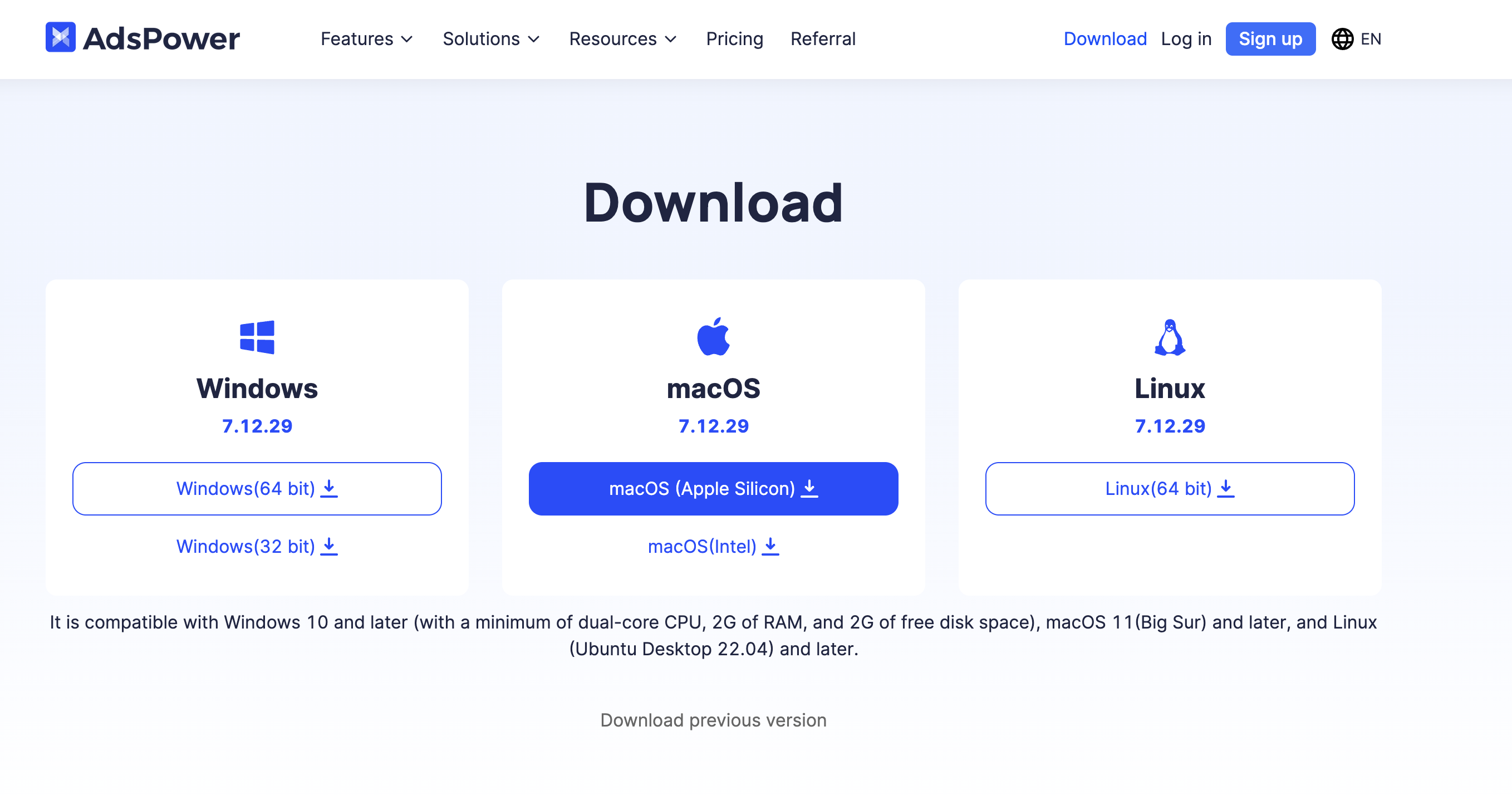
Go to adspower.com and download the AdsPower desktop application for your OS (Windows or macOS). Install and launch the application, then create a free account or log in. The free tier gives you 5 profiles, enough to test the setup. Paid plans scale up to unlimited profiles.
Step 3 — Create a Browser Profile for Each X Account
In AdsPower, each browser profile is a fully isolated environment with its own fingerprint, cookies, local storage, and session data. Nothing leaks between profiles.
In the AdsPower dashboard, click "New Profile". Name the profile clearly, for example: X Brand Account or X Client Acme Corp. Under Browser fingerprint, AdsPower will auto-generate a unique, realistic fingerprint for each profile, simulating a different real-world device. Leave this on automatic. The generated fingerprints are already calibrated for platform trust; manual tweaking is only for advanced users.
Choose between SunBrowser (Chromium-based) or FlowerBrowser (Firefox-based) as the browser core. For X, either works. Chromium is the safer default as it matches the most common real-world browser distribution.
Set the operating system to match the proxy's geography. If the proxy is US-based, use a Windows or macOS fingerprint typical for that region. Under WebRTC settings, set it to Disabled or Replace. This prevents WebRTC IP leaks from exposing your real IP address even when a proxy is active.
Step 4 — Assign a Proxy to Each Profile
This is the critical step. Every profile must have its own dedicated proxy — never share one proxy across two profiles.
Still in the profile creation window, find the Proxy section. Select Custom as the proxy type and choose SOCKS5 as the protocol. Enter your Proxy Empire credentials: the proxy host, port, username, and password. Click "Check Proxy" — AdsPower will verify the connection and display the detected IP and country. Confirm it matches the proxy you intended, then click OK to save the profile.
Repeat Steps 3 and 4 for every X account you plan to manage. One profile equals one proxy equals one X account.
Step 5 — Log In to Each X Account
In the AdsPower dashboard, find the profile you want to use and click "Open". An isolated browser window launches with its own unique fingerprint and its own IP address. X sees this as a completely separate device.
Go to x.com and log in to the corresponding account. Use the account normally: post, follow, reply, engage. When finished, simply close the browser window. AdsPower saves the session automatically inside the profile. The next time you open it, you'll still be logged in.
To switch to another account, return to the AdsPower dashboard and open a different profile. You can run multiple profiles simultaneously — each opens in a separate window, fully independent. X sees them as different users on different devices.
Best Practices for Staying Safe on X
The technical setup handles the device and IP layer, but X also watches for behavioral patterns. Here's what to keep in mind.
One proxy per account, always. Never reassign a proxy from one profile to another. Consistency at the IP level is one of the strongest trust signals.
Match proxy geography to account history. If an account was originally created in France, connect it from a French IP at all times. Country changes without explanation are a common flag trigger.
Warm up new accounts gradually. Don't start with 200 follows and 50 posts on day one. Build activity progressively over the first few weeks. Post, follow some accounts, engage with content. X's algorithm is especially sensitive to new accounts showing unnatural early-stage activity.
Never cross profiles. Don't visit Account B's profile or interact with Account B's posts while logged into Account A. Full isolation is the entire point of the setup.
Keep proxy subscriptions active. If a proxy expires and AdsPower falls back to your real IP, X may flag the account for an unexpected location change. Set reminders before renewals.
Vary your session timing. Logging into all accounts at the exact same time every day can look robotic. Keep your schedule slightly varied across profiles.
Avoid automation on fresh accounts. If you're using a tool like PowerIn to automate comments or engagement, wait until the account has several weeks of organic history before enabling automation. Combining a fresh account with aggressive automation is the highest-risk scenario.